

Appearance
Wishlist in Customer Account
Show customers their saved products inside their Shopify customer account - on the Profile page and on a dedicated Wishlist page in the account menu.
Overview
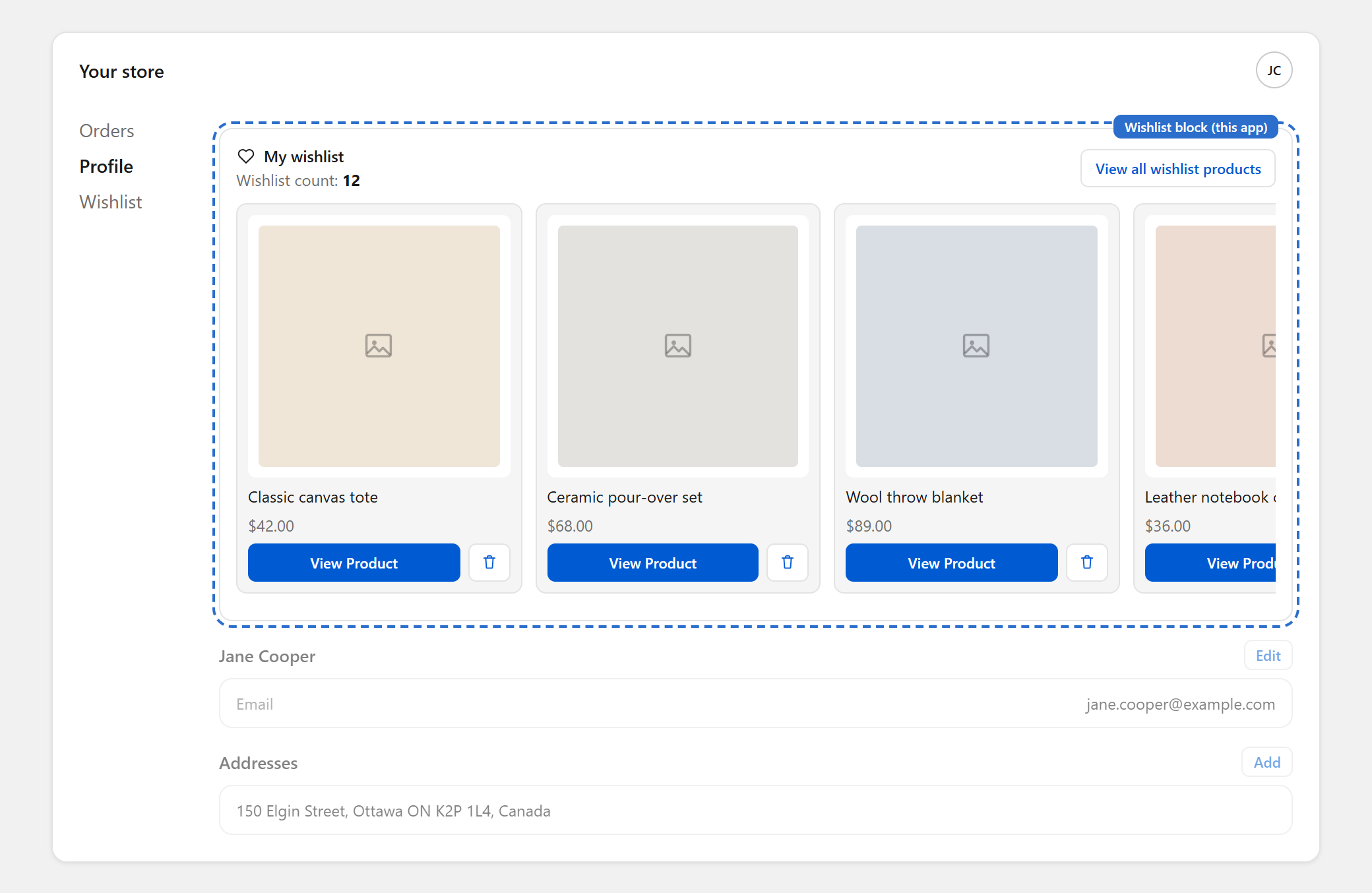
Logged-in customers can see and manage their wishlist from their customer account, without going back to your storefront. The app adds two pieces to Shopify's customer accounts:
- Wishlist profile block - a row of the customer's most recently saved products on their Profile page, with a View all wishlist products button.
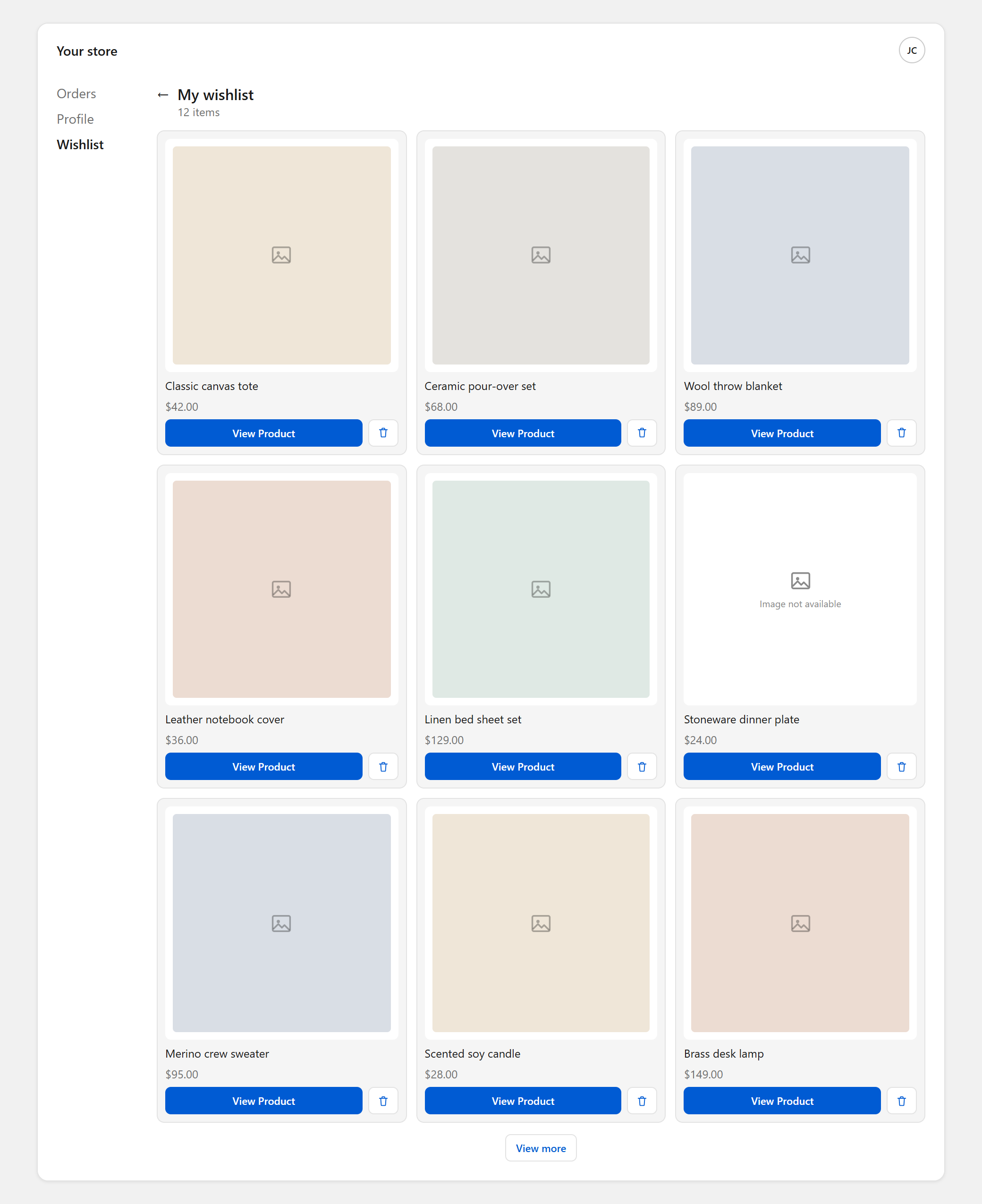
- Wishlist page - a full page in the customer account that lists every saved product, and can be added to the account menu.
Customers can open a product or remove it from their wishlist. Changes sync with the storefront wishlist.
Benefits
- Gives customers a second place to find their saved products, right where they check orders and account details
- Brings customers back to products they were interested in after they log in
- Needs no code - both pieces are added in Shopify's checkout and accounts editor
- Matches your customer account branding automatically
Where to Find It
Apps → BRIX: Wishlist Plus → Settings → Premium tab → Wishlist in account page → Customize
The settings screen shows a live preview of the Profile block and the Wishlist page (with Desktop, Tablet and Mobile views), plus setup steps.
Before You Start
- Your store must use new customer accounts. Legacy customer accounts aren't supported.
- This is available on all Shopify plans that use new customer accounts.
- The app embed must be on, so customers can save products on your storefront. See Installation.
How to Use
- Open the app and go to Settings → Premium tab → Wishlist in account page → Customize.
- Click Customize profile page. Shopify's checkout and accounts editor opens in a new tab.
- Choose the Profile page, click Add app block, and select Wishlist profile block.
- Add the Wishlist page, and accept the prompt to add it to the customer account menu.
- Click Save.
You can drag the profile block to any position on the Profile page in the same editor.
Available Settings
These settings are changed in Shopify's checkout and accounts editor, not in the app. Select the block or page in the editor to see them.
Wishlist profile block
| Setting | Description | Default |
|---|---|---|
| Products to show | How many recently saved products the block shows, 1–50 | 8 |
Wishlist page
| Setting | Description | Default |
|---|---|---|
| Products per load | How many products show before the View more button, 1–60 | 9 |
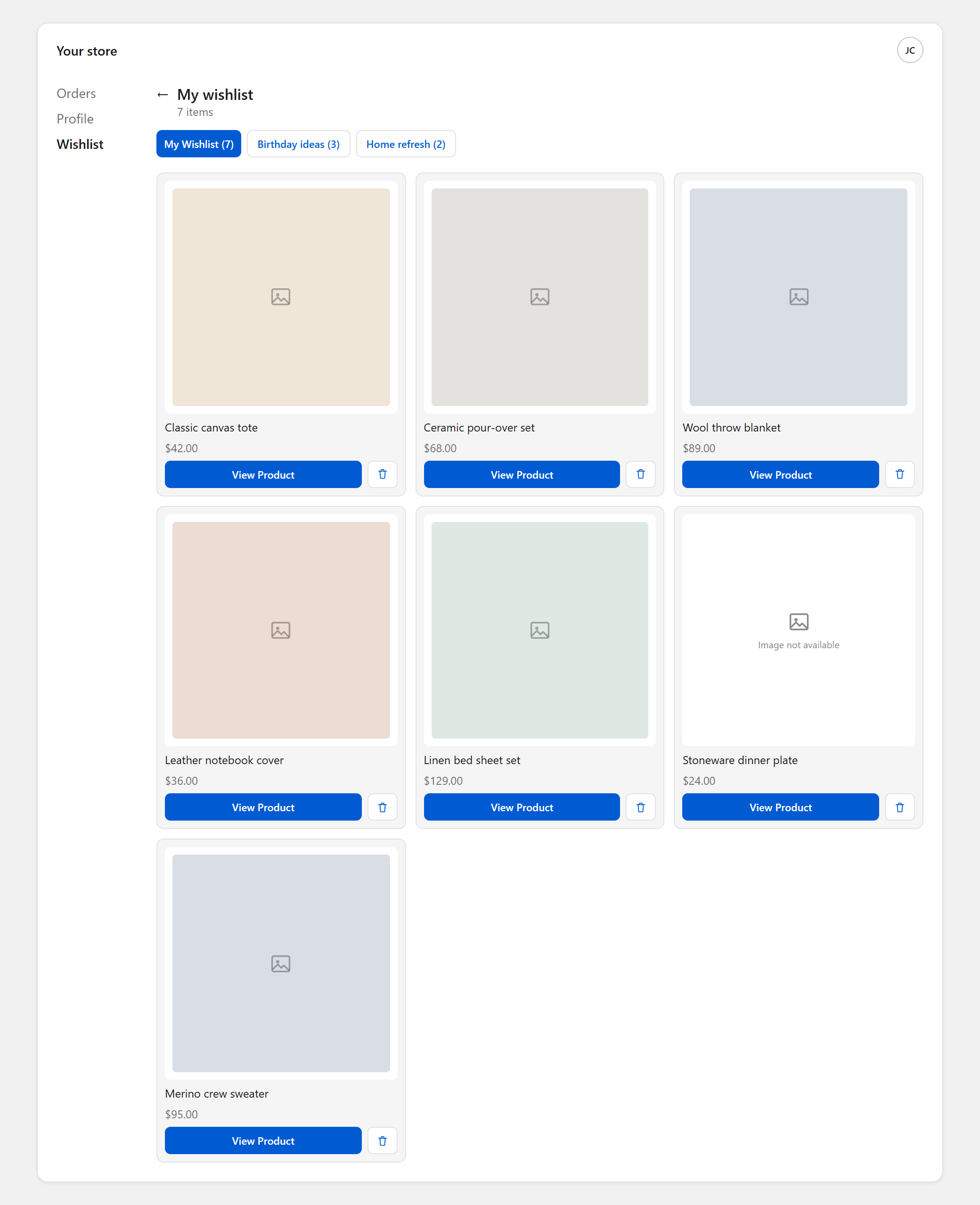
| Multiple wishlists display | merged shows products from all of a customer's wishlists in one list, with each product once. separate shows one tab per wishlist. Only applies to customers with more than one wishlist | merged |
Best Practices
- Add both the profile block and the Wishlist page. The block's View all wishlist products button links to the page.
- Accept the prompt to add the Wishlist page to the account menu, so customers can find it any time.
- If you use Multiple Wishlists, set Multiple wishlists display to separate so customers see their lists the same way as on your storefront.
- Keep Products to show small (the default 8 works well), so the Profile page stays easy to scan.
Notes
- Colors, fonts and buttons follow your customer account branding (Settings → Checkout → Customize → Branding in Shopify). They can't be styled from this app.
- Only logged-in customers have a customer account, so guest wishlist items appear here only after the guest logs in and their wishlist is merged.
- The preview in the app, and the images on this page, use sample products. The final look depends on your store's customer account branding.
- Products appear newest first.
Troubleshooting
I can't find "Wishlist profile block" in the editor. Confirm your store uses new customer accounts, not legacy accounts. Then make sure you're editing the Profile page in the checkout and accounts editor.
The Wishlist page isn't in the customer account menu. Open the checkout and accounts editor again, add the Wishlist page, and accept the prompt to add it to the menu. Then click Save.
A customer's account shows an empty wishlist, but they have saved products. Confirm the customer saved the products while logged in. Products a guest saves only appear after they log in on your storefront and the guest wishlist merges into their account.
The block doesn't match my store's colors. The block uses your customer account branding. Change it under Settings → Checkout → Customize → Branding in Shopify.