

Appearance
Wishlist Orders
See exactly which orders included wishlisted products, and how much revenue each one contributed.
Overview
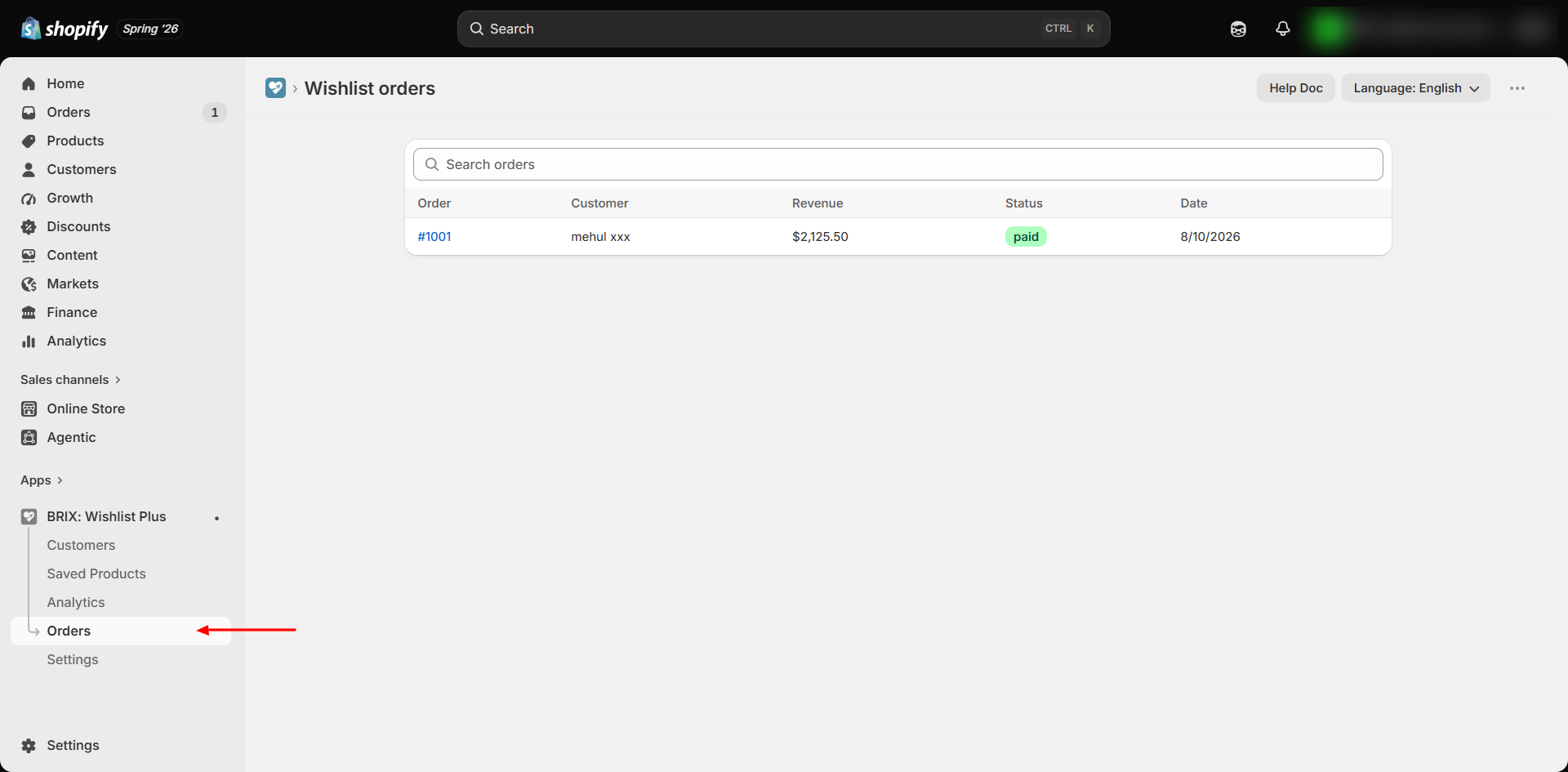
When a customer adds a wishlisted item to their cart and completes a purchase, the app automatically links that order back to the wishlist. This page lists every such order along with the portion of revenue attributable to wishlist items.
Benefits
- Prove the wishlist's direct contribution to sales, not just engagement
- Quickly find and review orders driven by wishlist activity
- Orders are also automatically tagged in your Shopify admin, so you can filter for them there too
Where to Find It
Apps → BRIX: Wishlist Plus → Orders
How to Use
- Open the app and go to Orders.
- Browse the list, most recent first.
- Use the search box to find an order by order number or customer name/email.
- Click an order to open it in your Shopify admin.
Available Settings
This page has no configurable settings - it's a reporting view. It displays:
| Column | Description |
|---|---|
| Order | Order number, linking to your Shopify admin |
| Customer | Name or email |
| Revenue | The wishlist-attributed portion of the order (not necessarily the full order total) |
| Status | "cancelled," or the order's payment status (e.g. "paid," "pending") |
| Date | Order creation date |
Best Practices
- Use this page alongside the Analytics revenue KPIs and trend chart to understand wishlist performance over time.
- In your Shopify Orders list, filter by the automatically applied "wishlist" tag to cross-reference orders without leaving Shopify's native order management tools.
Notes
- Revenue shown is only for the wishlisted line items in an order, not the full order total. If a customer buys a wishlisted item alongside other unrelated products, only the wishlisted item's value counts here.
- An order is attributed the moment a wishlisted item is added to cart and the order is subsequently paid - the customer doesn't need to check out directly from the wishlist page for it to count, as long as the add-to-cart happened from a wishlist action.
- If an order is later cancelled, its status updates to "cancelled" here and its revenue is automatically excluded from your Analytics totals.
- Every wishlist-attributed order also receives a "wishlist" tag in your Shopify admin automatically.
Troubleshooting
An order I expect to see isn't listed. Confirm the order actually included an item that was added to cart directly from the wishlist (button or wishlist page), not simply a product that happens to be on someone's wishlist elsewhere.
The revenue shown seems lower than the order total. This is expected if the order contained both wishlisted and non-wishlisted items - only the wishlisted portion is counted.