

Appearance
Wishlist Page
Controls how customers view and interact with their saved items - as a popup, a slide-out drawer, or a dedicated page on your store.
Overview
This is the main screen shoppers see when they open their wishlist. It lists every saved product with images, pricing, and stock status, and lets customers add items to cart, buy now, remove items, or share their list. You control how it opens, how items are laid out, and what actions are available.
Benefits
- Choose the display style that fits your store's design: popup, drawer, or a full page with its own URL
- Show pricing and stock status live, so customers always see accurate information
- Let customers check out directly from the wishlist with Add to cart or Buy now
- Control pagination so long wishlists stay easy to browse
Where to Find It
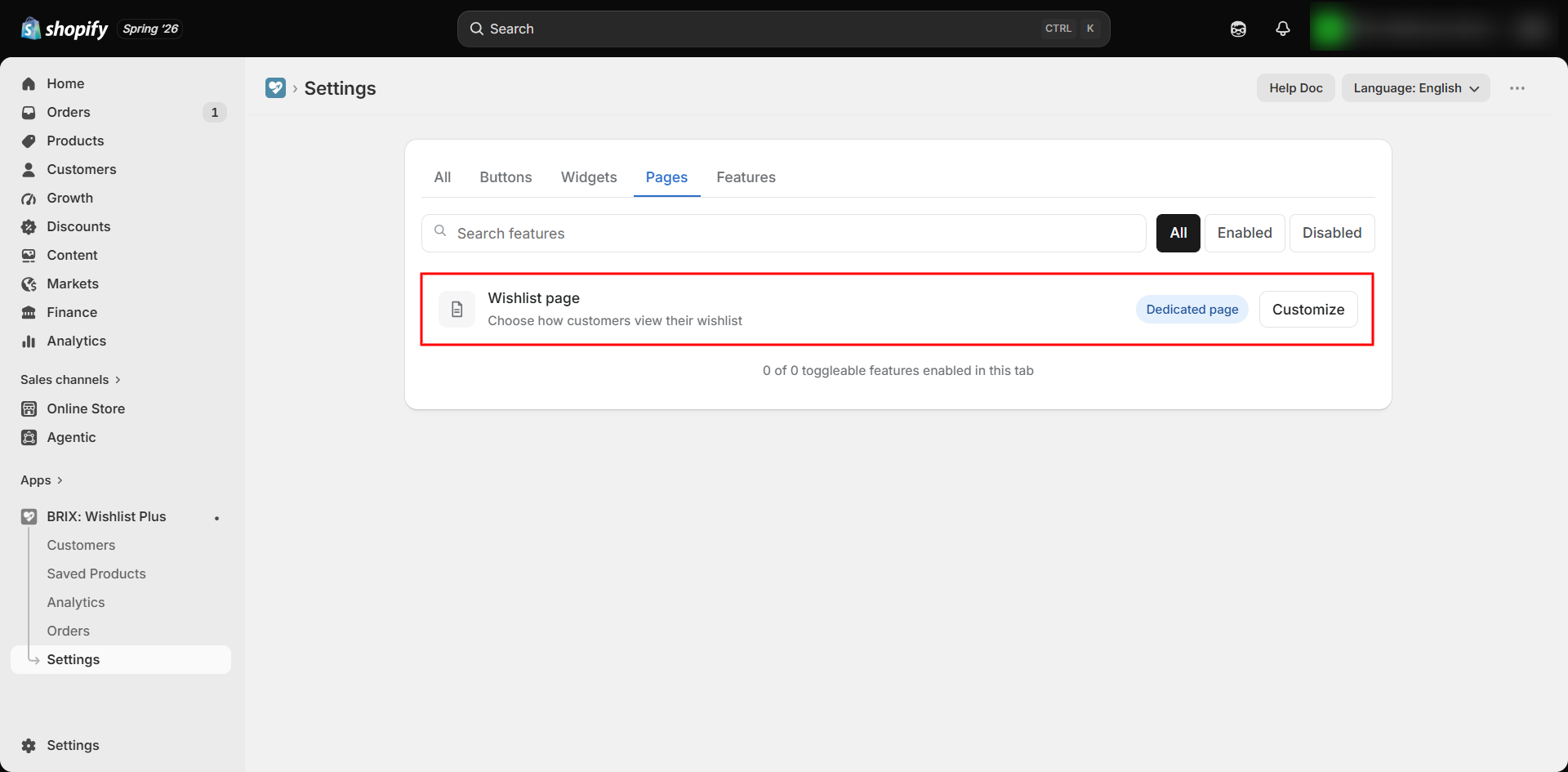
Apps → BRIX: Wishlist Plus → Settings → Pages tab → Wishlist page → Customize
How to Use
- Open the app and go to Settings.
- Find Wishlist page under the Pages tab. Its badge shows the current display style (Popup window, Drawer, or Dedicated page).
- Click Customize.
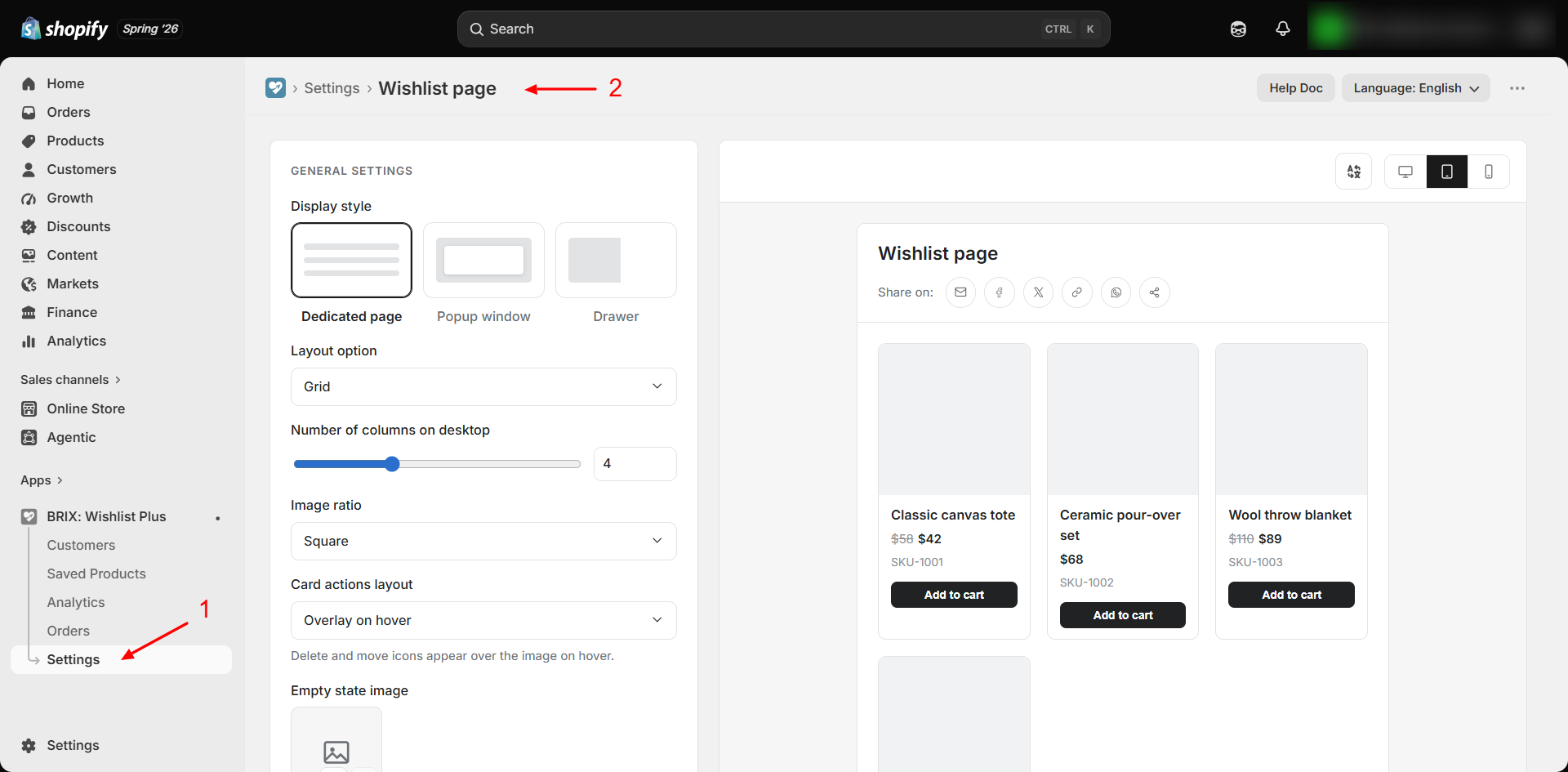
- Choose your Display style, layout, and product card options.
- Configure sharing, pricing display, and cart behavior.
- Set up pagination for longer wishlists.
- Translate customer-facing text if needed.
- Review the live preview, then click Save.
Available Settings
Display style
| Option | Description |
|---|---|
| Dedicated page | Wishlist opens as its own standalone page with a unique, bookmarkable URL |
| Popup window | Wishlist opens as a centered modal overlay on top of the current page (default) |
| Drawer | Wishlist slides in from the side as a drawer/panel |
Layout
| Setting | Description |
|---|---|
| Layout option | List, Grid, List first, or Grid first - the last two let shoppers toggle between views (default: Grid) |
| Number of columns on desktop | 3–6 slider (default: 4) |
| Number of columns on tablet | 2–4 slider (default: 3) |
| Number of columns on mobile | 1–2 slider (default: 2). With the Drawer display style, this is the only column setting and is labelled Number of columns |
| Image ratio | Adapt to image, Portrait, or Square (default: Square) |
| Card actions layout | Overlay on hover (icons appear over the image) or Same row as Add to cart (icons sit beside the button) - shown when layout isn't List-only (default: Overlay on hover) |
| Empty state image | Optional image shown when the wishlist has no items |
| Show sub title | Show the product's subtitle/type (default: off) |
Column settings appear only when Layout option isn't List-only. The Drawer is the same narrow width on every device, so it uses only the mobile column count.
Empty state button
A button on the empty wishlist that takes shoppers back to your products.
| Setting | Description |
|---|---|
| Empty state button | Show or hide the button (default: on) |
| Button text | The button label (default: "Continue shopping"). Translatable |
| Button link | Where the button goes: Homepage, Specific collection, or Custom URL (default: Custom URL) |
| Collection | Shown when Button link is Specific collection. Click Select collection to choose one |
| Custom URL | Shown when Button link is Custom URL. Enter a store path like /pages/sale or a full https:// link (default: /collections/all) |
Sharing
| Setting | Description |
|---|---|
| Share wishlist | Lets customers share their wishlist (default: on) |
| Share channels | Choose which options appear: Email, Facebook, Twitter, Copy link, WhatsApp - all on by default |
Pricing & Product Info
| Setting | Description |
|---|---|
| Show price | Displays the product price (default: on) |
| Price position | Below product title, or Below SKU - shown when Show price is on (default: Below product title) |
| Show SKU | Displays the product SKU (default: on) |
Cart Behavior
| Setting | Description |
|---|---|
| Remove when added to cart | Automatically removes an item from the wishlist once it's added to cart (default: off) |
| Continue adding to cart | Keeps the shopper on the wishlist after adding to cart instead of prompting to view cart (default: off) |
| Hide add to cart buttons | Hides all Add to cart buttons on the wishlist (default: off) |
| Show buy now button | Adds a Buy now button that skips the cart and goes straight to checkout (default: off) |
Pagination (shown when a wishlist has more products than fit on screen)
| Setting | Description |
|---|---|
| Pagination style | Load More (button), Numbered (page numbers), or Infinite Scroll (auto-loads as you scroll) - default: Load More |
| Products per page | 3–50 slider (default: 12) |
Translatable text
| Field | Default |
|---|---|
| Empty state title | "Your wishlist is empty" |
| Empty state message | "Save items you love by clicking the heart icon on any product." |
| Empty state button text | "Continue shopping" |
| Page title | "Wishlist page" |
| Share label | "Share on" |
| Add to cart text | "Add to cart" |
| View cart text | "View cart" |
| Buy now text | "Buy it now" |
| Remove button text | "Remove" |
| Load more button text | "Load more" |
Best Practices
- Choose Dedicated page if you want customers to be able to bookmark or link directly to their wishlist. Choose Popup or Drawer for a faster, no-navigation experience.
- Keep Show price and Show SKU on so customers can compare saved items without revisiting each product page.
- If you sell products that frequently sell out, keep stock status visible by not hiding the Add to cart button - a "Sold out" state is shown automatically for unavailable items.
- Point the Empty state button at a best-selling or new-arrivals collection, so shoppers with an empty wishlist have somewhere useful to go.
- Check the Tablet and Mobile previews after changing column counts. Two columns on mobile suits most stores; one column shows larger images.
- Use Numbered or Load More pagination for wishlists that are typically short; use Infinite Scroll for stores where customers tend to save many items.
Notes
- Prices and stock status shown here are always current - they reflect your live catalog, not what the price/stock was when the item was saved.
- If a saved product is later deleted from your store, it's automatically removed from the customer's wishlist view. If only the specific saved variant is deleted, the item shows as unavailable instead.
- If you have a multi-currency storefront, prices automatically display in the currency the shopper's storefront is showing.
- Empty state button links keep the shopper's market and language. For example, a shopper browsing your French store at
/fr/stays on the French version. - Switching Display style at any time doesn't break previously shared wishlist links - see Share Wishlist.
Troubleshooting
Customers say the wishlist page shows different products than they expect. If Multiple wishlists is enabled, they may be viewing a different list than the one they added an item to.
The Buy now button isn't showing. Confirm "Show buy now button" is turned on, and that the item is in stock.
The column count on tablet or mobile doesn't change. Column settings don't apply when Layout option is List-only. With the Drawer display style, only the mobile column count is used.
The Continue shopping button doesn't appear on the empty wishlist. Confirm Empty state button is on. If Button link is set to Specific collection, make sure a collection is selected.
Pagination doesn't seem to trigger. Confirm the wishlist actually has more items than your configured "Products per page" value.