

Appearance
Appearance
Control your storefront locator's layout, map style, pins, cards, search, and more.
Overview
Appearance is the main visual and behavioral settings page for the full locator - covering desktop/mobile layout, map style and pins, list sorting and pagination, card design, filters, search modes, radius, and zoom. Most of what's covered on the Search & Filters and Map Provider pages is actually configured here.
Benefits
- One place to control how your locator looks and behaves on desktop and mobile
- Live preview using the real locator, not a mockup
- Granular control over search, filters, radius, and zoom defaults
Where to Find It
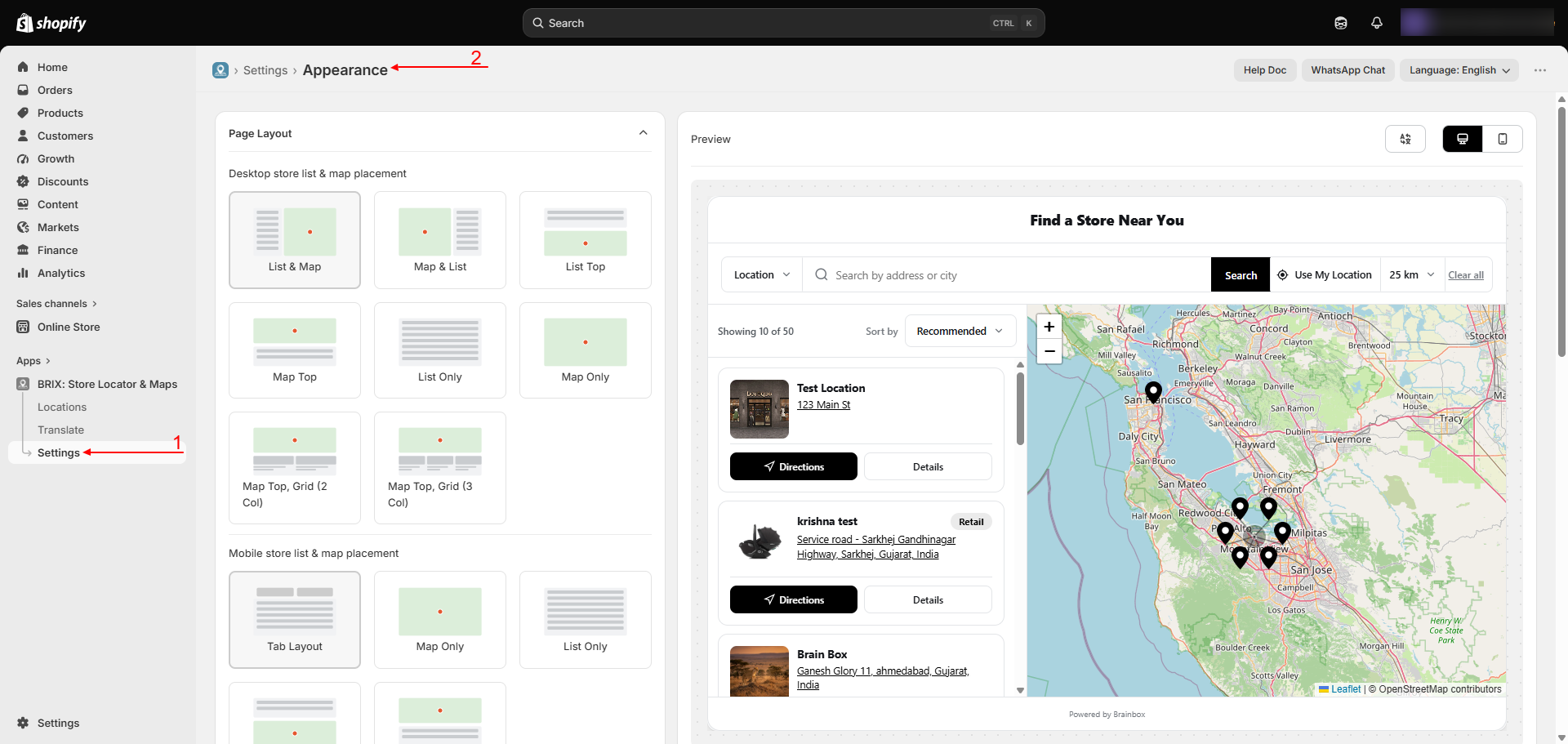
Apps → BRIX: Store Locator & Maps → Settings → Appearance
How to Use
- Open Settings → Appearance.
- Under Page Layout, choose your desktop layout (List & Map, Map & List, List Top, Map Top, List Only, Map Only, Map Top + Grid (2 Col), or Map Top + Grid (3 Col)) and, separately, your mobile layout (Tab Layout, Map Only, List Only, List Top, List Below).
- Under Map Style Settings, pick a map style and accent color - see Map Provider - OpenStreetMap.
- Under Map Pin Settings, choose a pin style (or upload a custom one) and toggle points-of-interest and tooltip-on-click.
- Under Location List Sorting & Pagination, set pagination style, locations per page, and default sort order.
- Under Location Card Style, choose how much detail each result card shows, and whether pins, tags, and direction links appear.
- Under Location Filters and Search Settings, turn on the filters and search modes you want - see Search & Filters.
- Under Map Radius and Map Zoom, set your defaults.
- Under Additional Settings, turn on auto-detect location and/or clustering if wanted.
- Check the live preview (Desktop/Mobile toggle) as you go, then click Save.
Available Settings
| Section | Key options |
|---|---|
| Page Layout | 8 desktop layouts, 5 independent mobile layouts |
| Map Style Settings | 4 map styles, accent color |
| Map Pin Settings | 6 pin styles (including custom upload), show points of interest, tooltip on click |
| Location List Sorting & Pagination | Load More / Numbered / Infinite Scroll, locations per page (1-50), default sort order |
| Location Card Style | 3 card layouts, show pin, show tags, direction-link options |
| Location Filters | Address search box, tag filters, open-now filter, "extend search from selected location" |
| Search Settings | Search-by modes, default search mode, country filter with display style and priority |
| Map Radius | Unit, default, and maximum search radius |
| Map Zoom | Default zoom, zoom on search, zoom on details page |
| Additional Settings | Auto-detect visitor location, location clustering |
Best Practices
- Match your mobile layout choice to how much of your traffic is mobile - Tab Layout keeps things compact on small screens.
- Keep card style consistent with how important photos are to your locations (skip images entirely if most locations don't have one).
- Set sensible Map Zoom defaults for your service area - a country-wide default zoom looks very different for a single-city business than a national chain.
Notes
- There's currently no visible option to hide the "Powered by" badge on the storefront widget footer.
- There's currently no map-provider picker here - the app always uses OpenStreetMap; see Map Provider - OpenStreetMap.
Troubleshooting
My layout change isn't showing on mobile. Desktop and mobile layouts are set independently - confirm you changed the Mobile layout option, not just Desktop.
My preview looks different from my live storefront. Click Save - the live storefront reflects your saved settings, and some browser caching may briefly show the previous version right after saving.