

Appearance
Custom Fields
Add your own fields - like amenities or product availability - to every location.
Overview
Custom Fields let you define extra pieces of information to collect on every location - up to 5 fields per store - which you fill in per-location on the location form, and which customers can see on the location's detail card. Custom fields aren't currently available as a storefront filter.
Benefits
- Capture details the built-in fields don't cover (parking, curbside pickup, accepted brands, and more)
- Reuse the same field across every location, filled in per-location
- Reorder fields by dragging, and control where each one is visible
Where to Find It
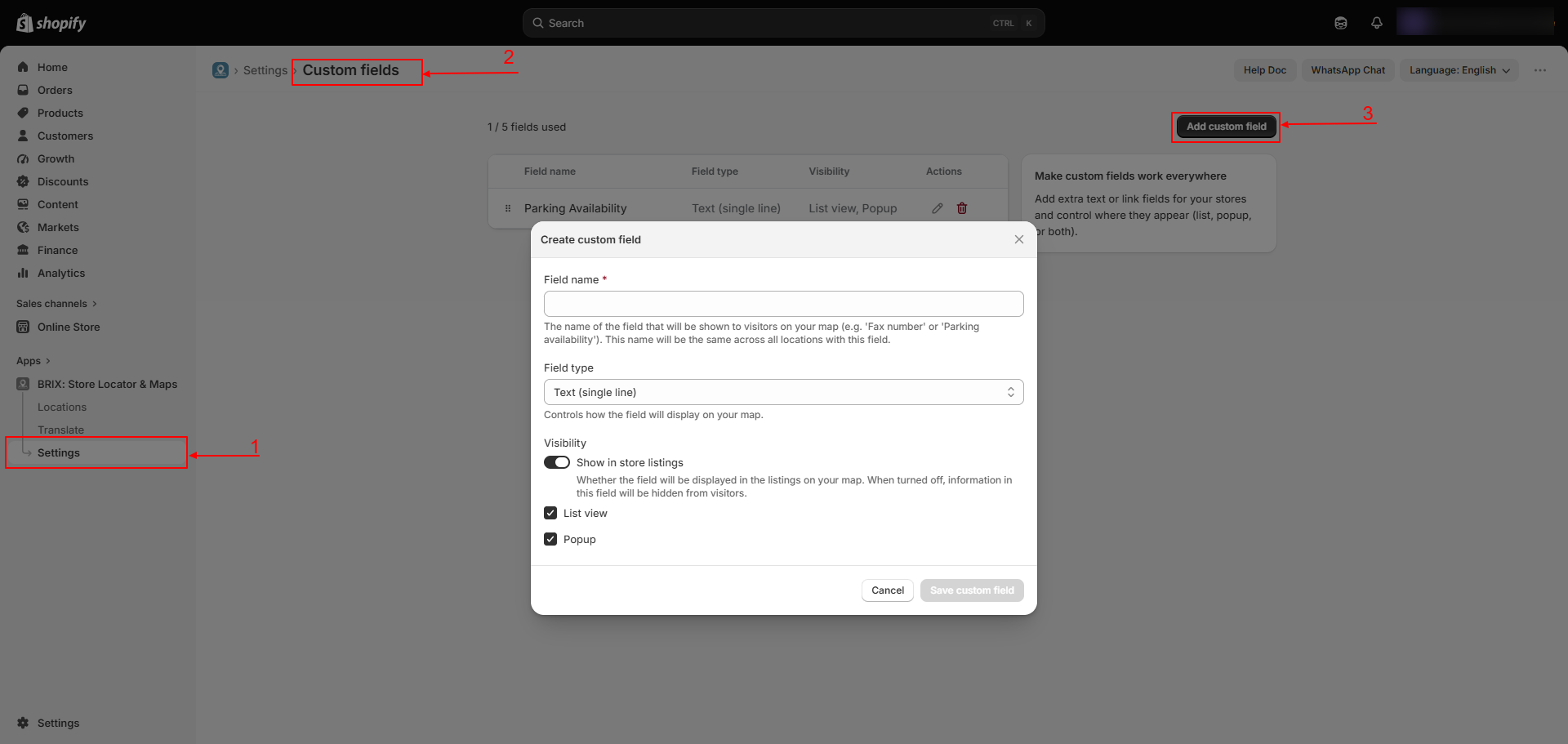
Apps → BRIX: Store Locator & Maps → Settings → Custom Fields
How to Use
- Open Settings → Custom Fields.
- Click Add custom field (available until you reach the 5-field limit).
- Enter a Field name and choose a Field type: Text (single-line), Text (multi-line), or Link.
- Turn on "Show in store listings" if you want this field visible to customers, then choose whether it appears in the List view, the Popup (detail card), or both.
- Save, then drag fields in the list to reorder them.
- Open any location and fill in a value for each custom field under its own Custom Fields section - see Adding & Editing a Location.
Available Settings
| Setting | Description |
|---|---|
| Field name | Label shown on the location form and, if visible, to customers |
| Field type | Text (single-line), Text (multi-line), or Link (validated as a URL) |
| Show in store listings | Master toggle for customer visibility |
| List view / Popup | Where a visible field appears on the storefront - the results list and/or the location detail card |
| Reorder | Drag and drop to change field order everywhere they appear |
| Field limit | 5 fields per store |
Best Practices
- Use short, clear field names - they double as the label customers see.
- Reserve Popup-only visibility for longer details, and List view for anything customers should see while scanning results.
- Fill in a value on every location for any field you mark customer-visible, so results don't look inconsistent.
Notes
- You can have at most 5 custom fields per store; the Add button disables and a banner appears once you reach the limit.
- Deleting a custom field also removes its saved value from every location - there's no way to recover it afterward.
- Custom field values currently appear only on the location's detail card (its "Store Information" section) - they are not usable as a storefront filter control today.
Troubleshooting
I can't add another custom field. You've reached the 5-field limit - delete or repurpose an existing field instead.
A custom field isn't showing on the storefront. Confirm "Show in store listings" is on for that field, and that the location itself has a value filled in - empty values are hidden.