

Appearance
Installation
How to install BRIX: Store Locator & Maps and get your storefront locator live.
Overview
Installing the app adds it to your Shopify admin and automatically creates a live, hosted store locator page - no theme edits required. To also show the floating Find a Store button, and to place the full locator directly inside one of your theme's pages, you turn on the app's theme app embed and (optionally) add its app block from your theme editor.
Benefits
- Works immediately after install via the app's own hosted page - nothing to configure in your theme to get a working locator online
- Add the floating button and an in-page locator block only where you want them
- The app's Dashboard walks you through both steps with direct links into your theme editor
Where to Find It
Apps → BRIX: Store Locator & Maps (opens the app Dashboard)
To turn on the floating button (app embed):
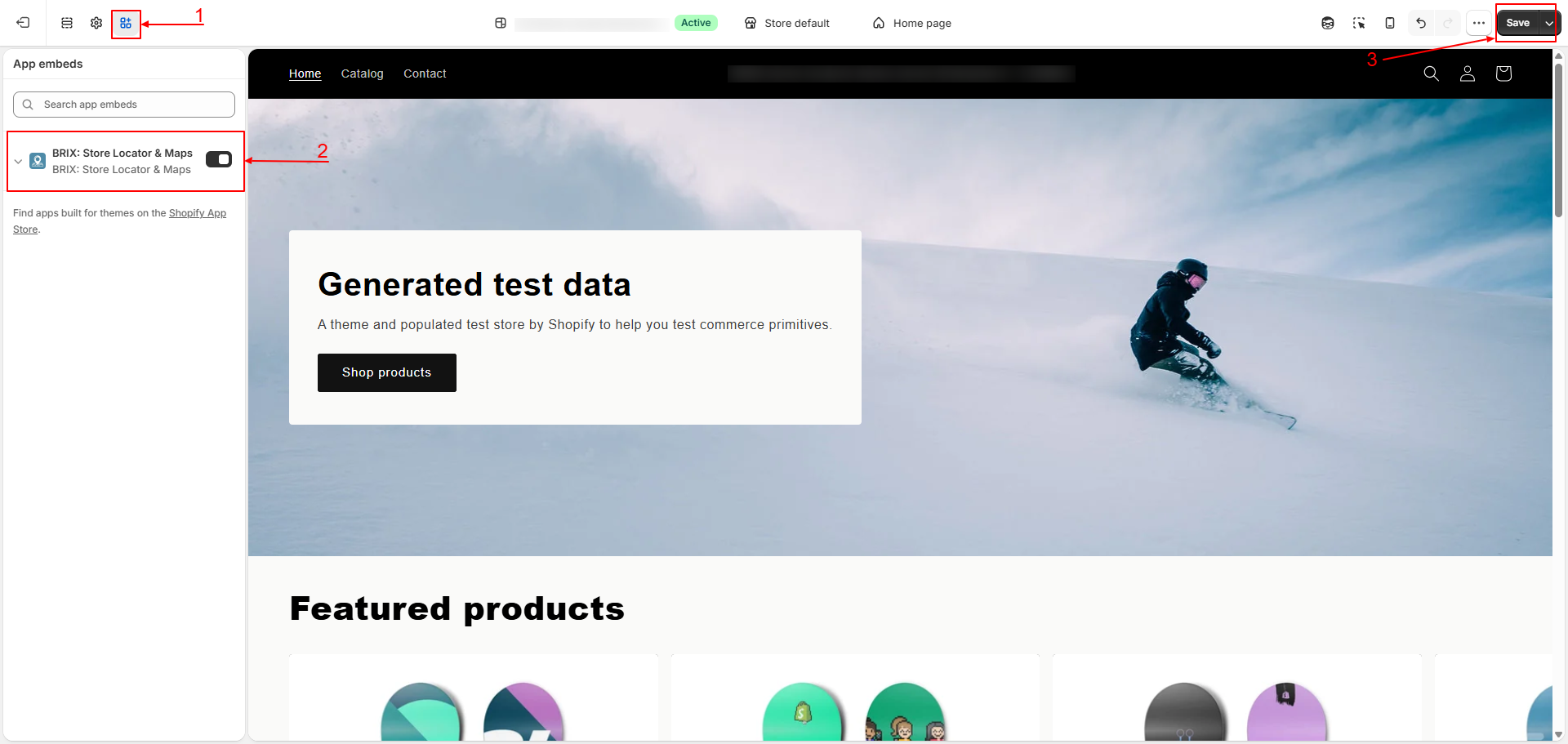
Online Store → Themes → Customize (on your live/published theme) → App embeds (bottom-left toggle icon) → BRIX: Store Locator & Maps
To add the in-page locator block:
Online Store → Themes → Customize → Add block (on the page/section where you want the locator) → Store Locator
How to Use
- Install BRIX: Store Locator & Maps from the Shopify App Store, or open it from Apps in your Shopify admin if it's already installed.
- On first open, you land on the app's Dashboard, which shows a short setup checklist.
- From the checklist, click Activate app embed to jump straight into your theme editor's App embeds panel, then turn on BRIX: Store Locator & Maps and click Save.
- Add your first location - click Add location from the checklist, or see Adding & Editing a Location.
- (Optional) Click Open theme editor from the "Add store locator block" step to place the full locator directly inside a page in your theme, instead of relying only on the app's own hosted page.
- Click Save in the theme editor for any embed or block change to go live.
Tip The app also gives you a ready-to-use hosted locator page (linked from the Dashboard's Store Locator URL card) - the theme app block is only needed if you want the locator embedded inside one of your own theme's pages instead.
Available Settings
| Setting | Description |
|---|---|
| App embed - BRIX: Store Locator & Maps | Master on/off switch for the floating Find a Store button, shown on every storefront page once turned on |
| Store Locator (app block) | Adds the full locator - map, search, and results list - to a specific page or section in your theme |
| Hosted locator page | Available automatically after install, no theme changes required |
Best Practices
- Turn on the app embed on your live/published theme, not just a draft, so customers can actually find the button.
- If you use multiple themes, repeat these steps on each one you publish.
- Add your locations before publicizing the locator link, so customers don't land on an empty page.
Notes
- Requires an Online Store 2.0 theme.
- The Store Locator block currently loads on whatever page you add it to - there's no page-targeting control today.
Troubleshooting
The floating button doesn't appear on my store. Confirm the BRIX: Store Locator & Maps app embed is turned on and saved in your theme editor.
My hosted locator page shows no results. Confirm you've added at least one location and its status is set to Active - see Adding & Editing a Location.