

Appearance
Dashboard Overview
A guide to the app's Dashboard - your at-a-glance view of setup and locations.
Overview
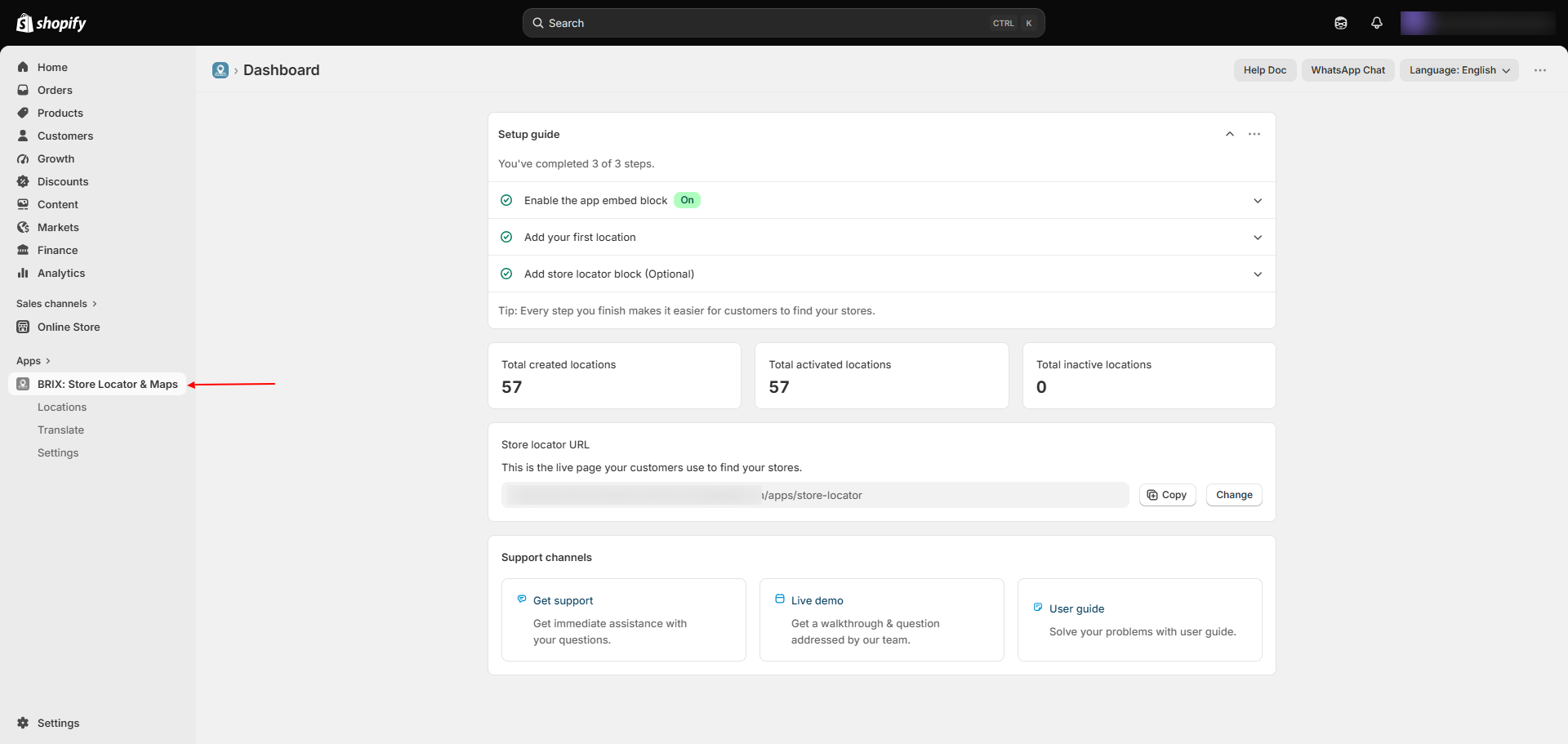
The Dashboard is the first screen you see when you open BRIX: Store Locator & Maps. It shows your setup checklist, location counts, your live locator URL, and support links.
Benefits
- See setup progress without digging through settings
- Check location counts at a glance
- Copy your live locator URL directly from the Dashboard
Where to Find It
Apps → BRIX: Store Locator & Maps
How to Use
- Open the app - you land on the Dashboard automatically.
- Work through the Setup Guide: activate the app embed, add your first location, and optionally add the Store Locator block to your theme.
- Review your location stats to confirm how many locations are created, active, and inactive.
- Copy your Store Locator URL to share or link to from elsewhere on your site.
- Use the Get Support card to reach the support team by email.
Available Settings
Dashboard does not contain configurable settings. It shows:
| Section | What It Shows |
|---|---|
| Setup Guide | 3-step checklist: activate app embed, add first location, add Store Locator block (optional); dismissible |
| Location stats | Total created, total activated, and total inactive locations |
| Store Locator URL | Your live, hosted locator page URL, with Copy and Change (jumps to SEO settings) buttons |
| Support | Get Support (opens an email to the support team) |
Note The Dashboard also shows Live demo and User guide links - these aren't set up yet, so only Get Support is currently active.
Best Practices
- Check the Dashboard first when troubleshooting - the setup guide flags anything still missing.
- Revisit your location stats after a CSV import to confirm the numbers match what you expected.
Notes
- The Dashboard has no dedicated left-navigation link - it's simply what loads when you open the app.
Troubleshooting
My app embed shows "Off" even though I turned it on. Confirm you clicked Save in the theme editor - toggling without saving doesn't activate it. The Dashboard's status reflects your live theme's actual saved settings.
Live demo / User guide links don't do anything. These aren't set up yet - use Get Support instead.