

Appearance
Custom CSS
Add your own CSS to fine-tune the locator's appearance beyond the built-in settings.
Overview
Custom CSS lets you write raw CSS that's injected wherever the locator widget itself loads - your hosted locator page, or any page carrying the Store Locator app block. It's an advanced, optional feature for merchants comfortable with CSS, or their developers.
Benefits
- Fine-tune styling details the Appearance settings don't cover
- Applies automatically everywhere the locator widget appears
- No coding required elsewhere - only touch this if you actually need it
Where to Find It
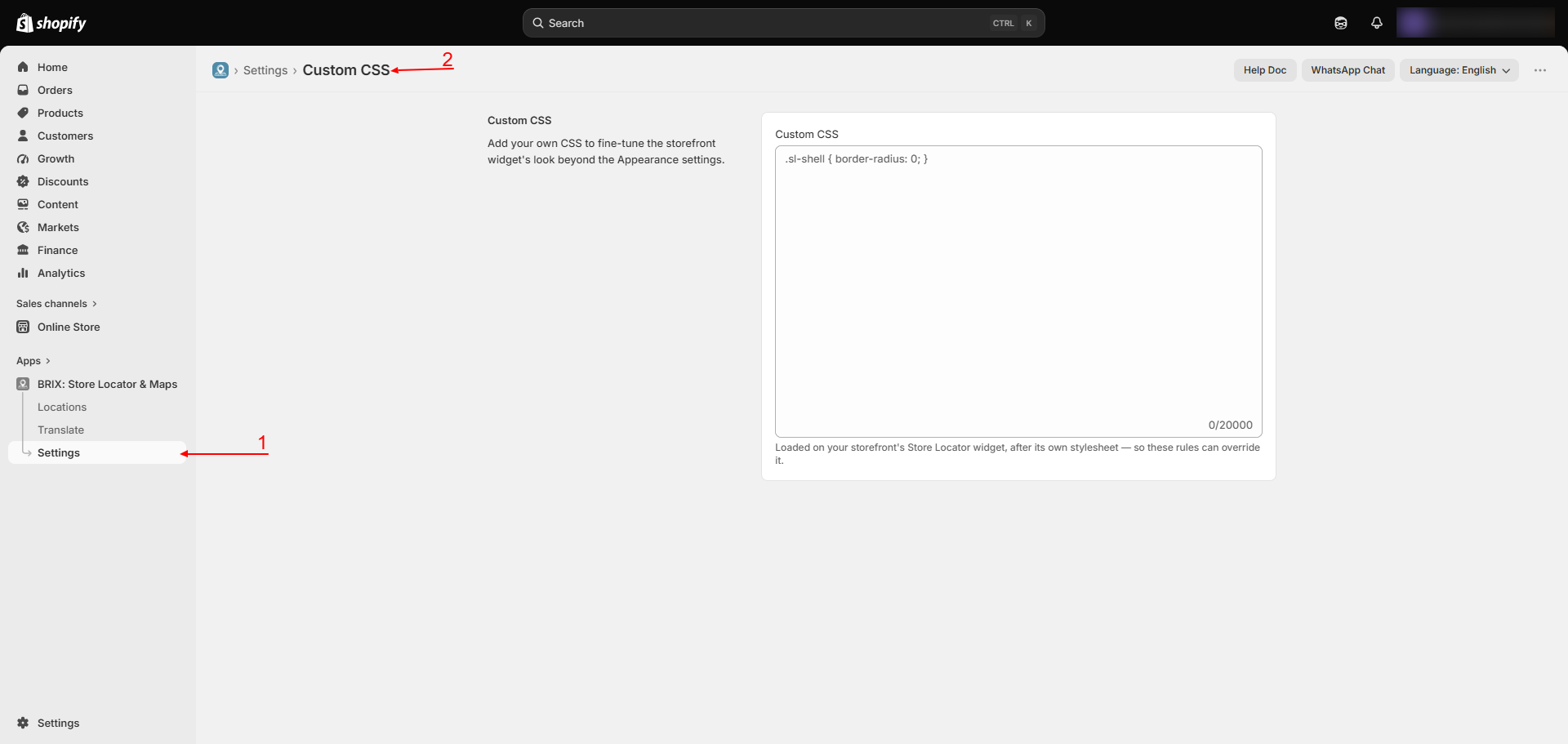
Apps → BRIX: Store Locator & Maps → Settings → Custom CSS
How to Use
- Open Settings → Custom CSS.
- Enter your CSS in the editor (up to 20,000 characters).
- Click Save.
- Check your live locator page or Store Locator block to confirm the change.
Available Settings
| Setting | Description | Default |
|---|---|---|
| Custom CSS | Raw CSS applied wherever the locator widget appears on your storefront | Empty |
Best Practices
- Test changes on a duplicate/draft theme first if you're unsure how they'll look.
- Scope your selectors to the locator's own classes rather than broad, generic selectors, to avoid unintended side effects.
- Keep a copy of your CSS elsewhere before making major changes - there's no built-in version history.
Notes
- This applies only on pages where the locator widget itself is present (your hosted locator page, or a page with the Store Locator block) - it does not apply theme-wide.
- There's no live preview for Custom CSS in the admin - check your actual storefront after saving.
- Custom CSS is not translated, validated, or checked for syntax errors by the app.
Troubleshooting
My custom CSS isn't taking effect. Confirm you clicked Save, and that you're viewing a page where the locator widget actually loads - your hosted locator page or a page with the Store Locator block.
The locator looks broken after I added custom CSS. Remove or comment out what you added, save, and confirm it returns to normal, then reintroduce your changes gradually to isolate the issue.