

Appearance
Bulk Import via CSV
Add or update many locations at once from a CSV file.
Overview
Bulk Import lets you upload a CSV of locations - optionally including linked products and variants - map its columns to the app's fields, preview what will happen, and import in the background with a downloadable report when it's done.
Benefits
- Add hundreds of locations in one pass instead of one at a time
- Update existing locations by re-importing with "Overwrite existing locations" turned on
- Every row's outcome (imported, updated, skipped, or failed) is reported individually
Where to Find It
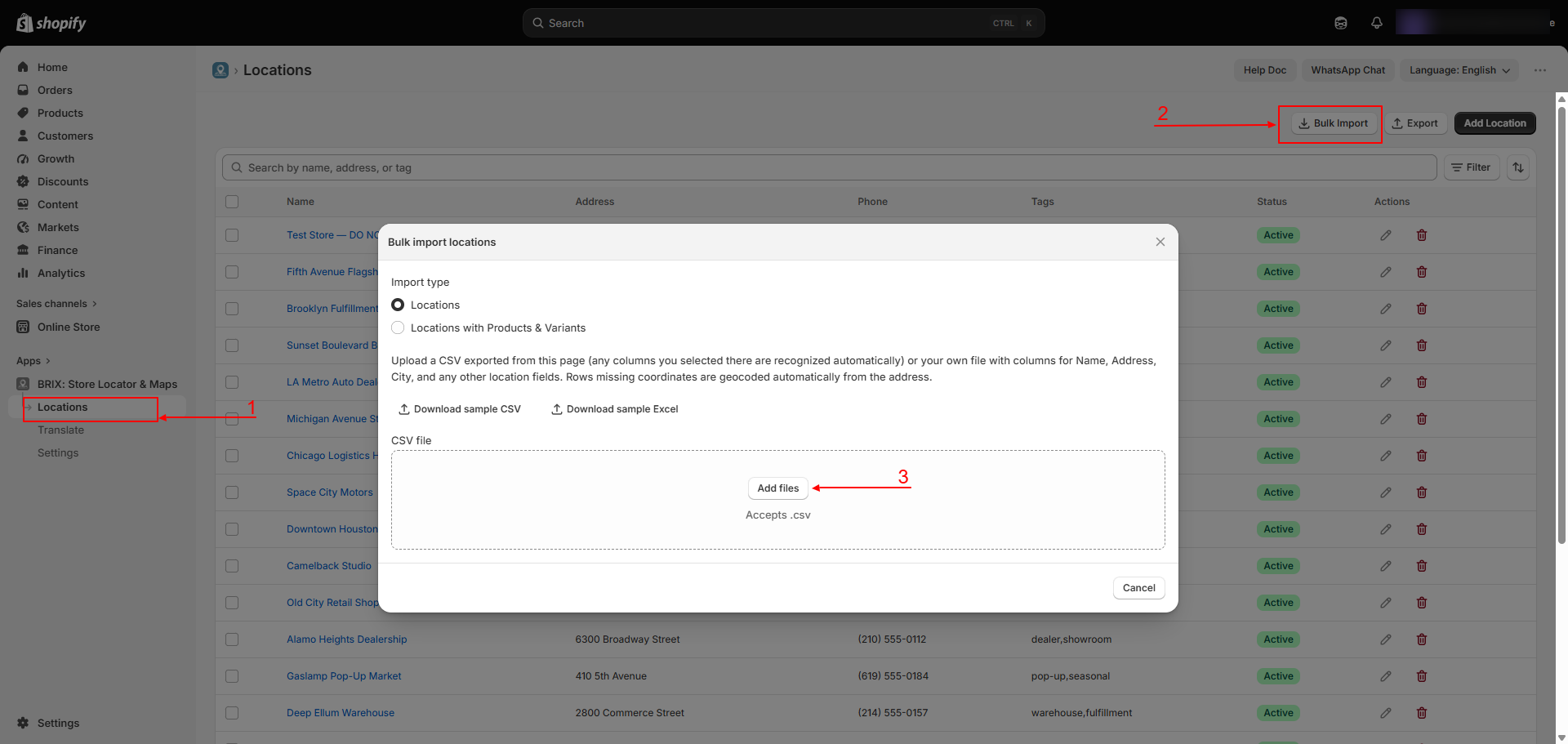
Apps → BRIX: Store Locator & Maps → Locations → Bulk Import
How to Use
- From Locations, click Bulk Import.
- Choose an import type: Locations, or Locations with Products & Variants if your file also links products.
- Click Download sample CSV (or Excel) to get a template with your store's own custom field columns already included.
- Drag in your
.csvfile. - For a plain Locations import, map each of your file's columns to the matching app field - columns from the app's own export are matched automatically. Name and City are required.
- Review the Preview table. Turn on Overwrite existing locations if you want matching rows (by Location ID) to update existing locations instead of being treated as duplicates.
- Click Import to queue the job. Progress updates automatically while it processes.
- When it finishes, review the summary (Total / Imported / Updated / Skipped / Failed) and download the report for row-by-row details.
Available Settings
| Setting | Description |
|---|---|
| Import type | "Locations" or "Locations with Products & Variants" |
| Column mapping | Assigns each CSV column to a location field (Locations mode only; the Products & Variants layout uses fixed column names instead) |
| Overwrite existing locations | Updates locations matching an existing Location ID instead of creating duplicates |
| Sample CSV / Excel download | A ready-to-fill template including your store's current custom fields |
Best Practices
- Start from the Download sample CSV/Excel template rather than building your own from scratch, so column names match automatically.
- Do a small test import (2-3 rows) before importing a large file.
- Export your current locations first if you plan to bulk-update them, so your Location ID column lines up correctly with "Overwrite existing locations."
Notes
- Country must match a recognized country name/code - this is the only error that fails a row outright.
- Invalid latitude/longitude is dropped silently and the app re-geocodes from the address instead.
- Non-web URLs in Website, Image URL, or Marker Icon URL are stripped rather than causing a failure.
- Description HTML is sanitized to a safe subset of tags on import.
- Every automatic correction, not just failures, is listed in the downloadable report's Reason column.
Troubleshooting
Some rows show as "Skipped" instead of imported. With Overwrite off, a row whose Location ID matches an existing location is skipped rather than creating a duplicate - turn on Overwrite existing locations if you meant to update it.
A row failed with a country error. Check that the Country column exactly matches a real country - see the downloadable report for the specific row.
My import seems stuck on "processing." Large files can take a little time; the status updates automatically. If it doesn't finish after several minutes, try again with a smaller file.