

Appearance
Buy More, Get More
Tiered "buy more, get more free" campaigns that reward larger orders.
Overview
Buy More, Get More lets you build a tiered offer table - for example, "Buy 2, get 1 free" and "Buy 4, get 2 free" - all inside one promotion. As a customer adds more of the qualifying product to their cart, they automatically unlock the next tier. This page covers what's unique to this promotion type; see Product Promotions Overview for shared settings.
Benefits
- Encourages customers to add more to their cart to reach the next reward tier
- One promotion can offer several tiers instead of a single fixed "buy 1 get 1"
- Automatically generates a readable offer label for each tier (e.g. "Buy 2 Get 1 free")
Where to Find It
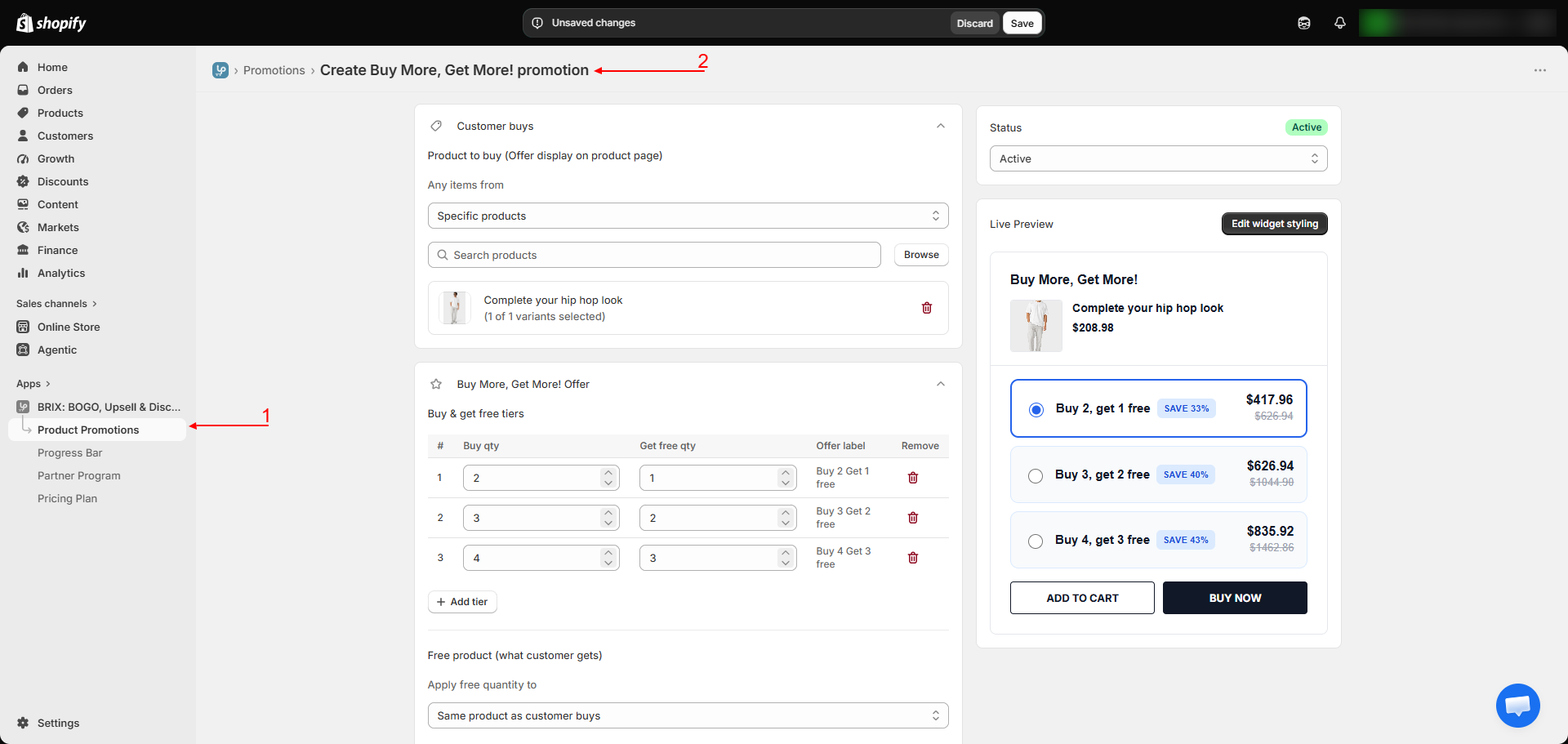
Apps → BRIX: BOGO, Upsell & Discount → Product Promotions → Create promotion → Buy More, Get More!
How to Use
- From Create promotion, choose Buy More, Get More!.
- Set up the shared targeting (which products this applies to) - see Product Promotions Overview.
- Build your tier table: for each tier, enter the Buy quantity and the Get free quantity. The app automatically generates a label like "Buy 2 Get 1 free."
- Click Add tier to add more reward levels - the app suggests a reasonable next tier automatically.
- Choose whether the free quantity applies to the same product the customer is buying (the only option currently available).
- Optionally turn on Free Shipping and Show label on collection page.
- Save, then add the Buy More Get More block to your product or collection template.
Available Settings
| Setting | Description |
|---|---|
| Tier table | Buy quantity / Get free quantity per tier, with an auto-generated label |
| Add tier | Adds another reward level to the table |
| Apply free quantity to | Currently limited to the same product the customer is buying |
| Free Shipping | Waives shipping on orders using this offer |
| Show label on collection page | Displays an offer badge on this product's card in collection/search listings (requires the Collection Offer Badges app embed) |
Best Practices
- Start with 2-3 tiers rather than a long list - too many tiers can make the widget feel cluttered.
- Space tiers meaningfully apart (e.g. 2/4/6, not 2/3/4) so each tier feels like a genuine step up.
- Pair this with the Cart Progress Bar if you want to visually nudge shoppers toward the next tier while they browse.
Notes
- The free item is always the same product as the one being purchased in this version of the feature - offering a different free item for a "buy more" tier isn't available yet.
- As with all promotion types, there's no scheduled start/end date - use the Active/Inactive toggle to control when the campaign runs.
Troubleshooting
The tiered offer isn't showing on my product page. Confirm the Buy More Get More block has been added to that template, and the promotion is Active.
A customer says they didn't get the expected free quantity. Double-check your tier table - tiers are based on the exact buy quantity ranges you configured, so a quantity that falls between two tiers only unlocks the lower one.