

Appearance
Dashboard Overview
A guide to the app's Home screen - your at-a-glance view of setup and campaign performance.
Overview
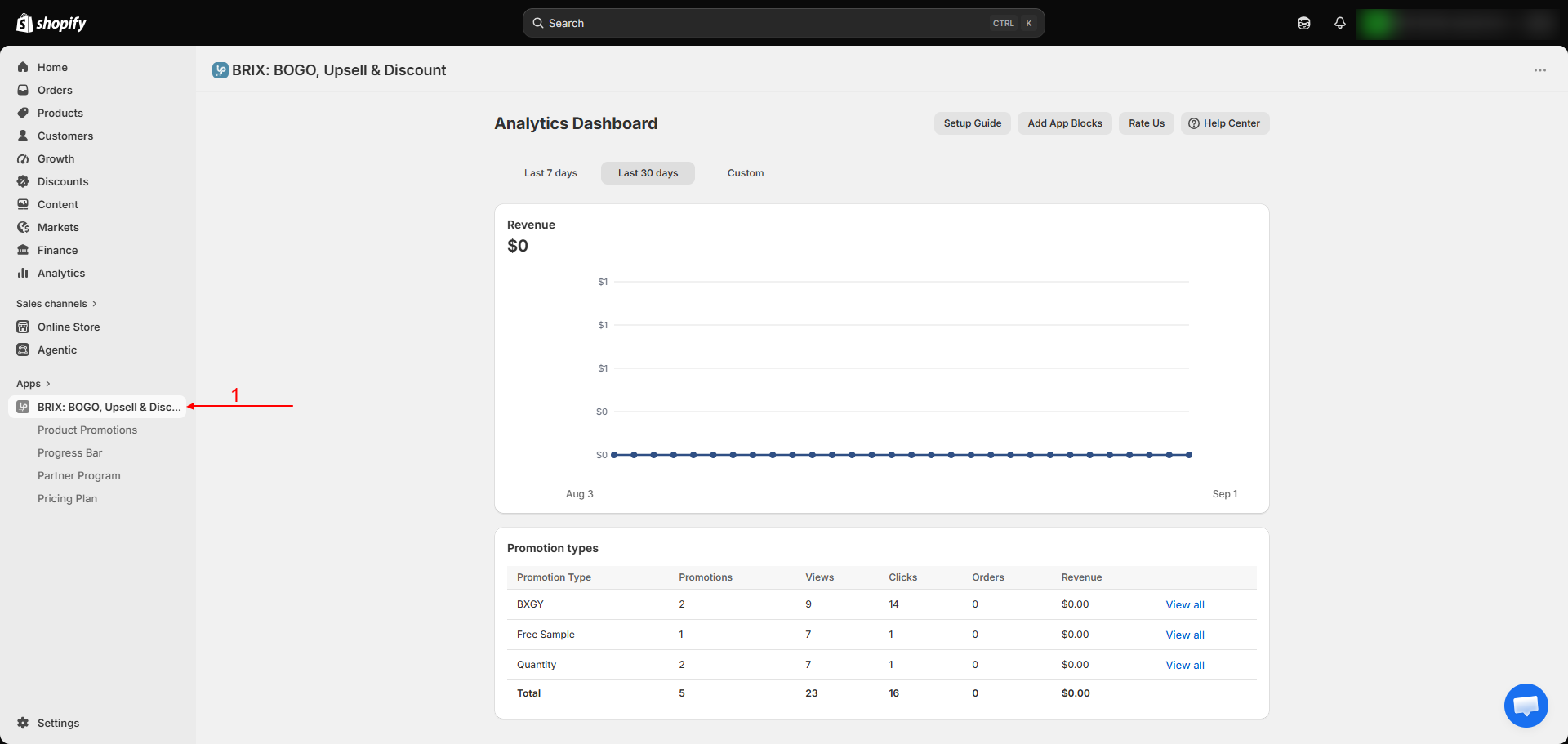
Home is the first screen you see when you open BRIX: BOGO, Upsell & Discount (its on-screen heading reads "Analytics Dashboard"). It shows your setup checklist, a revenue chart, and a summary table of how each promotion type is performing.
Benefits
- See your setup progress without digging through settings
- Get a quick read on revenue and performance across all your campaign types in one place
- Jump straight into creating a new promotion or adding a theme block
Where to Find It
Apps → BRIX: BOGO, Upsell & Discount → Home
How to Use
- Open the app. You land on Home automatically.
- If you're new, a setup guide walks you through creating your first campaign and adding it to your theme - see Quick Start.
- Use the date range control above the revenue chart to review performance over different periods.
- Review the promotion types table for a breakdown of views, clicks, orders, and revenue by campaign type.
- Use Add App Blocks to jump into your theme editor with the relevant offer block or embed pre-selected.
Available Settings
Home does not contain configurable settings. It shows:
| Section | What It Shows |
|---|---|
| Setup guide | A short checklist for creating your first campaign and adding it to your theme; dismissible once complete |
| Revenue chart | Revenue over your selected date range |
| Promotion types table | Per-type totals: number of promotions, views, clicks, orders, and revenue, with a link into each type's detail view |
| Add App Blocks | Shortcut list of every storefront widget, each with a button that opens your theme editor to the right place |
Note The promotion types table breaks totals down by campaign type (BXGY, Buy More Get More, Volume Discount, Free Sample, Fixed Bundle), not by individual campaign. To see numbers for one specific campaign, open its type from this table and use the detail view - see Analytics Overview.
Best Practices
- Check Home first whenever you're troubleshooting - the setup guide will point out if a required step (like adding a theme block) is still missing.
- Use the promotion types table to spot which campaign type is performing best before investing more time in variations of it.
Notes
- If the table shows no data yet, this usually means either no campaign has received any storefront traffic yet, or the matching theme block hasn't been added - see Troubleshooting.
Troubleshooting
My promotion types table shows zero activity even though I created a campaign. Confirm the matching storefront block or embed has actually been added and saved in your theme editor - creating a campaign in the app doesn't put it on your store by itself.
My revenue numbers look lower than I expected. Revenue here only reflects orders where this app's discount was actually applied - not your store's total sales. See Billing & Plans for how this same "attributed" concept applies to pricing.