

Appearance
Checkout Extensions
Surface your offers directly on the checkout page - available on Shopify Plus.
Overview
On top of your storefront widgets, BRIX: BOGO, Upsell & Discount can show offers directly inside the checkout flow, letting customers claim a promotion at the highest-intent moment of their purchase. This requires a Shopify Plus plan, since Shopify only allows checkout-page customization of this kind on Plus stores.
Benefits
- Capture upsell opportunities customers might not have seen on the storefront
- Let customers claim BXGY, Buy More, Volume Discount, Free Sample, Fixed Bundle, and Cart Progress Bar rewards without leaving checkout
- Fully customizable text and styling to match your checkout's branding
Where to Find It
Apps → BRIX: BOGO, Upsell & Discount → Product Promotions or Progress Bar → open a promotion → Advanced Settings (Shopify Plus stores only)
then
Settings → Checkout → Customize (Shopify's own checkout editor)
Before You Start
- Your store must be on Shopify Plus. On other plans, this section doesn't appear in the app, and checkout customization isn't available through any app.
- You configure each promotion's checkout visibility from inside this app, then add the corresponding checkout extension using Shopify's own checkout editor - it's a two-part setup.
How to Use
- Open a Product Promotion (or the Progress Bar) you've already created.
- In its Advanced Settings section (visible on Shopify Plus stores), check Display at Checkout UI.
- Click Enable Checkout UI - this opens Shopify's native checkout editor.
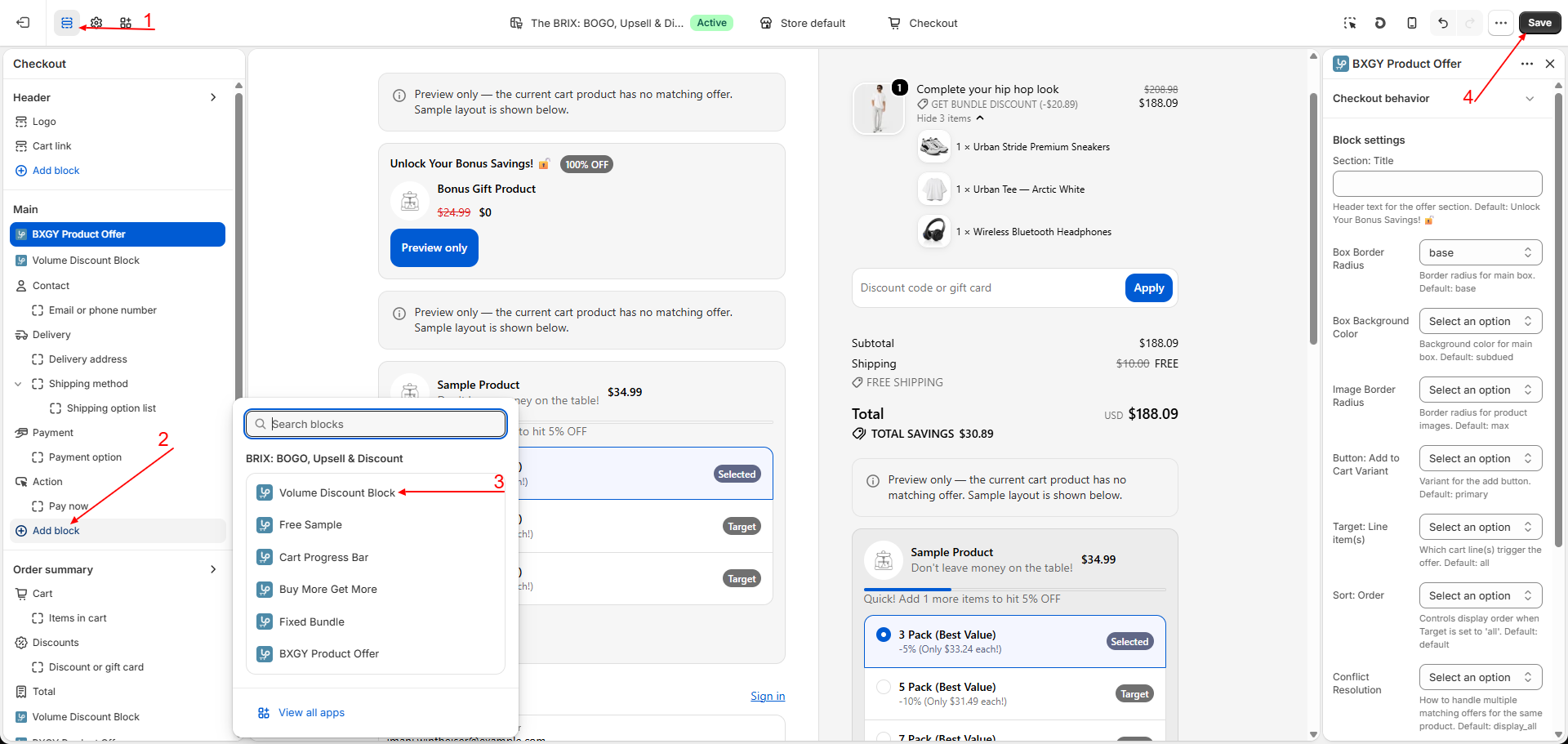
- In the checkout editor, add the matching offer block to your checkout layout, and adjust its text and style settings there.
- Save in the checkout editor.
Available Settings
Each checkout extension has its own text and style options, set inside Shopify's checkout editor once you've added it. A typical block (for example, BXGY Product Offer) includes:
| Setting | Description | Default |
|---|---|---|
| Section: Title | Header text for the offer section | "Unlock Your Bonus Savings! 🔓" |
| Box Border Radius | Corner rounding for the offer's box | Base |
| Box Background Color | Background style for the offer's box | Subdued |
| Image Border Radius | Corner rounding for product images | Max |
| Button: Add to Cart Variant | Visual style of the add-to-cart button | Primary |
| Target: Line item(s) | Which cart line(s) the offer targets when more than one could qualify | All |
| Sort: Order | Display order when multiple offers could apply | Default |
| Conflict Resolution | How to handle multiple matching offers for the same product | Display all |
Progress/unlock messaging, success messaging, and button labels follow the same pattern on the tiered offer types (Volume Discount, Buy More, Free Sample). The exact fields available depend on which promotion type's checkout extension you're configuring.
Note Checkout offers appear alongside your regular checkout summary - a customer can see an unlocked bundle discount applied as a line-item reduction, free shipping replacing the shipping charge, or a Volume Discount "pack" picker letting them switch quantities right from checkout, all without leaving the page.
Best Practices
- Enable checkout extensions only for your best-performing storefront offers first, rather than all of them at once, to keep checkout focused.
- Keep checkout offer text especially short - checkout is a high-intent, low-patience moment for most customers.
- Test the checkout experience yourself after enabling a new extension, since checkout styling is configured separately from your storefront widget styling.
Notes
- Checkout extensions are an addition to, not a replacement for, your storefront widgets - both can run at the same time.
- If your store is on Shopify Plus but you don't see the Advanced Settings section on a promotion, confirm your Shopify plan status is reflected correctly, or contact support.
Troubleshooting
I don't see an option to enable checkout offers. This feature is only available on Shopify Plus. If you are on Plus and still don't see it, contact support.
I turned on "Display at Checkout UI" but nothing shows at checkout. You still need to add the matching block in Shopify's own checkout editor - turning on the setting in this app doesn't automatically add it to your checkout layout.