

Appearance
Installation
How to install BRIX: BOGO, Upsell & Discount and turn it on for your storefront.
Overview
Installing the app adds it to your Shopify admin, but your promotions and Cart Progress Bar will not appear on your live store until you also turn on the app's theme app embeds and add the relevant offer blocks to your theme. This app has a few more moving parts than a simple toggle - it uses two separate app embeds plus individual blocks you add to specific templates - so it's worth reading through this page fully before you start creating campaigns.
Benefits
- No coding required for standard Online Store 2.0 themes
- You choose exactly which pages show which offer widgets, rather than everything turning on at once
- The app's setup guide walks you through the remaining steps after install
Where to Find It
Apps → BRIX: BOGO, Upsell & Discount (opens the app Dashboard)
To turn on the app embeds:
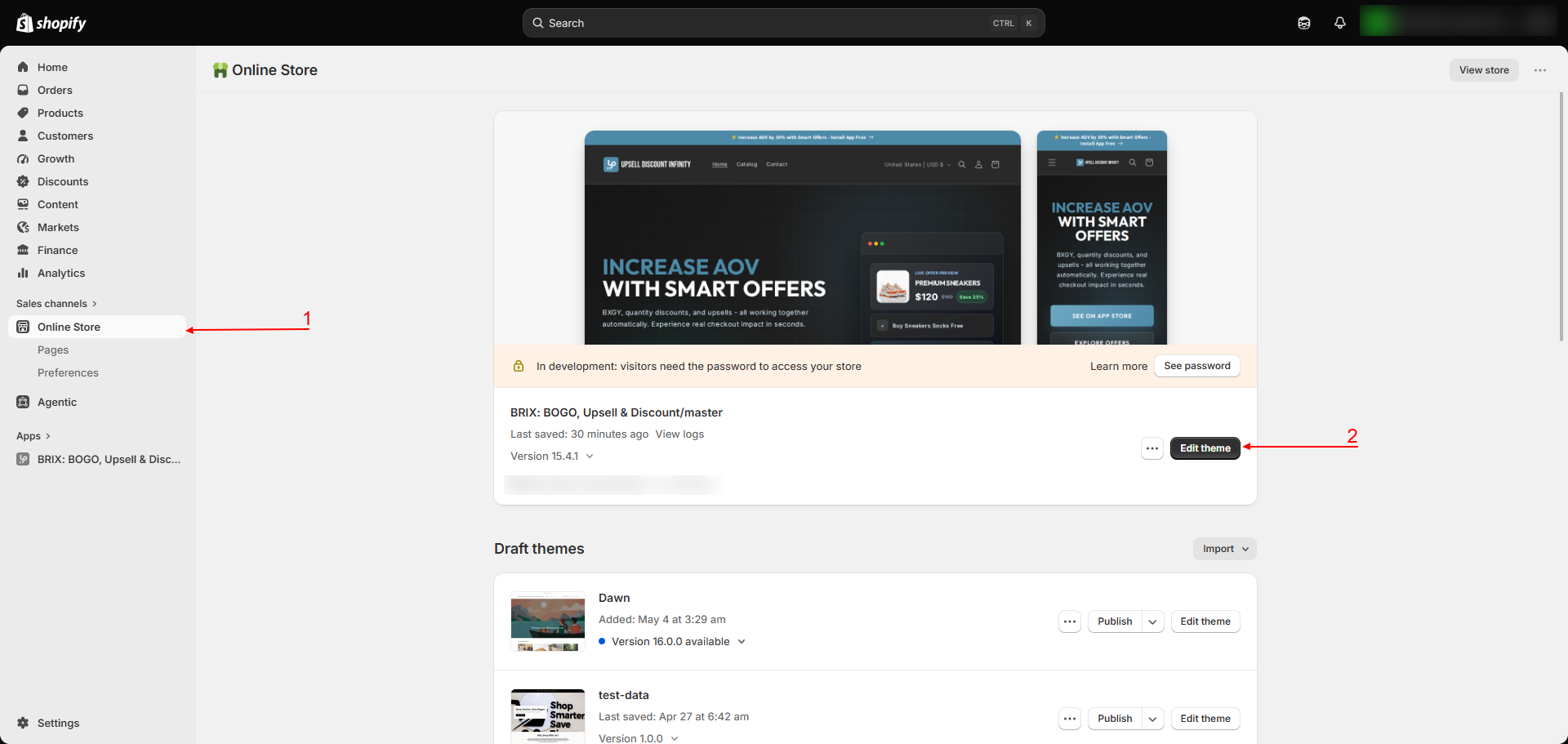
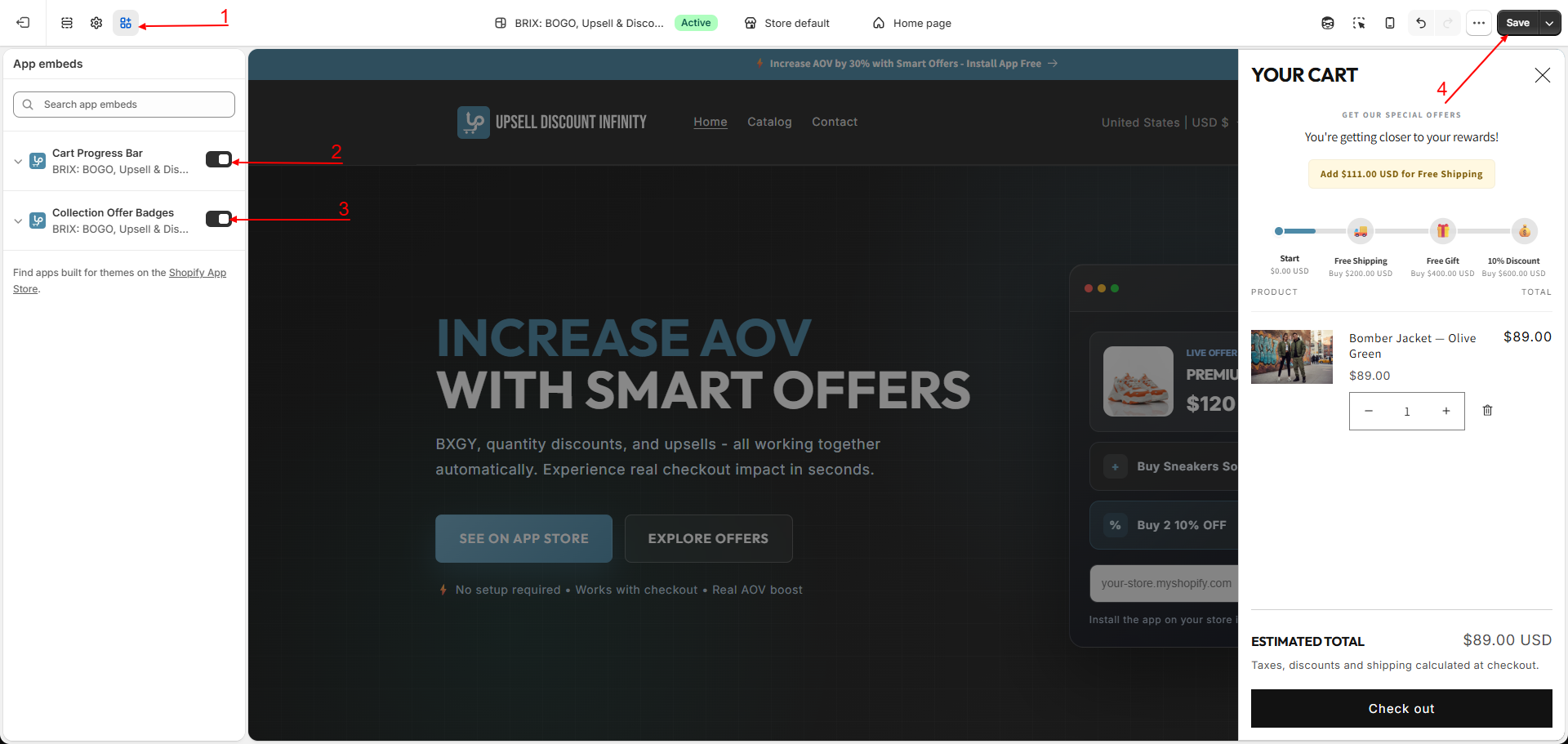
Online Store → Themes → Customize (on your live/published theme) → App embeds (bottom-left toggle icon)
How to Use
- Install BRIX: BOGO, Upsell & Discount from the Shopify App Store, or open it from Apps in your Shopify admin if it's already installed.
- On first open, you land on the app's Home dashboard, which walks you through a short setup checklist.
- Open your theme editor's App embeds panel and turn on:
- Cart Progress Bar - required if you plan to use the Cart Progress Bar.
- Collection Offer Badges - optional; shows a small offer badge on product cards in your collection, search, and home pages when a product has an active promotion.
- Click Save in the theme editor.
- For each promotion type you plan to run (BXGY, Buy More Get More, Volume Discount, Free Sample, Fixed Bundle), add the matching app block to the product or collection template where you want it to appear - see Storefront Setup for the full list and exact steps.
- Return to the app and create your first campaign - see Quick Start.
Tip You must click Save in the theme editor for any embed or block change to go live. Toggling something on without saving does not activate it.
Available Settings
| Setting | Description |
|---|---|
| Cart Progress Bar (app embed) | Master on/off switch for the Cart Progress Bar widget storewide. |
| Collection Offer Badges (app embed) | Master on/off switch for the small offer badge shown on product cards across collection, search, and home pages. |
| Individual offer blocks (BXGY, Buy More, Volume Discount, Free Sample, Fixed Bundle) | Added per template (product page and/or collection page) rather than as a single storewide switch - see Storefront Setup. |
Note Unlike a single on/off embed, most of this app's storefront widgets are blocks you add to a specific template, not a single toggle that turns everything on everywhere. This gives you control over exactly which pages show which offer, but does mean each offer type needs its block added once per template before it will appear.
Best Practices
- Enable app embeds and add blocks on your live/published theme, not just a draft theme, so customers actually see your offers.
- If you use multiple themes (seasonal campaigns, A/B tests), remember to repeat these steps on each theme you publish.
- Add the block for an offer type only to the templates where you actually plan to run that type of promotion, to keep your theme editor tidy.
Notes
- Requires an Online Store 2.0 theme. Legacy (vintage) themes that don't support app embeds or app blocks cannot display these widgets.
- Checkout-page offer widgets are a separate, additional setup step and require a Shopify Plus plan - see Checkout Extensions.
Troubleshooting
My promotion doesn't show up on the storefront after I created it. Confirm you've added the matching app block to the product or collection template, and that the block's own settings haven't been customized in a way that hides it. See Storefront Setup and Troubleshooting.
The Cart Progress Bar doesn't appear. Confirm the Cart Progress Bar app embed is turned on and saved, and that you have at least one active progress bar created in the app.