

Appearance
BXGY Offers
Buy X, get Y free or discounted - with flexible product, variant, and collection mapping.
Overview
BXGY (Buy X, Get Y) lets a customer buy one product and receive another - free, or at a percentage or fixed discount. You control what counts as the "buy" item, what counts as the "get" item, and how the discount is calculated. This page covers what's unique to BXGY; see Product Promotions Overview for the shared settings (targeting, discount label, exclusions, B2B exclusion, status).
Benefits
- Classic "buy one, get one" style offers without creating or distributing discount codes
- Works across single products, variants, or whole collections
- Customers can add both items to their cart in one click from the storefront widget
Where to Find It
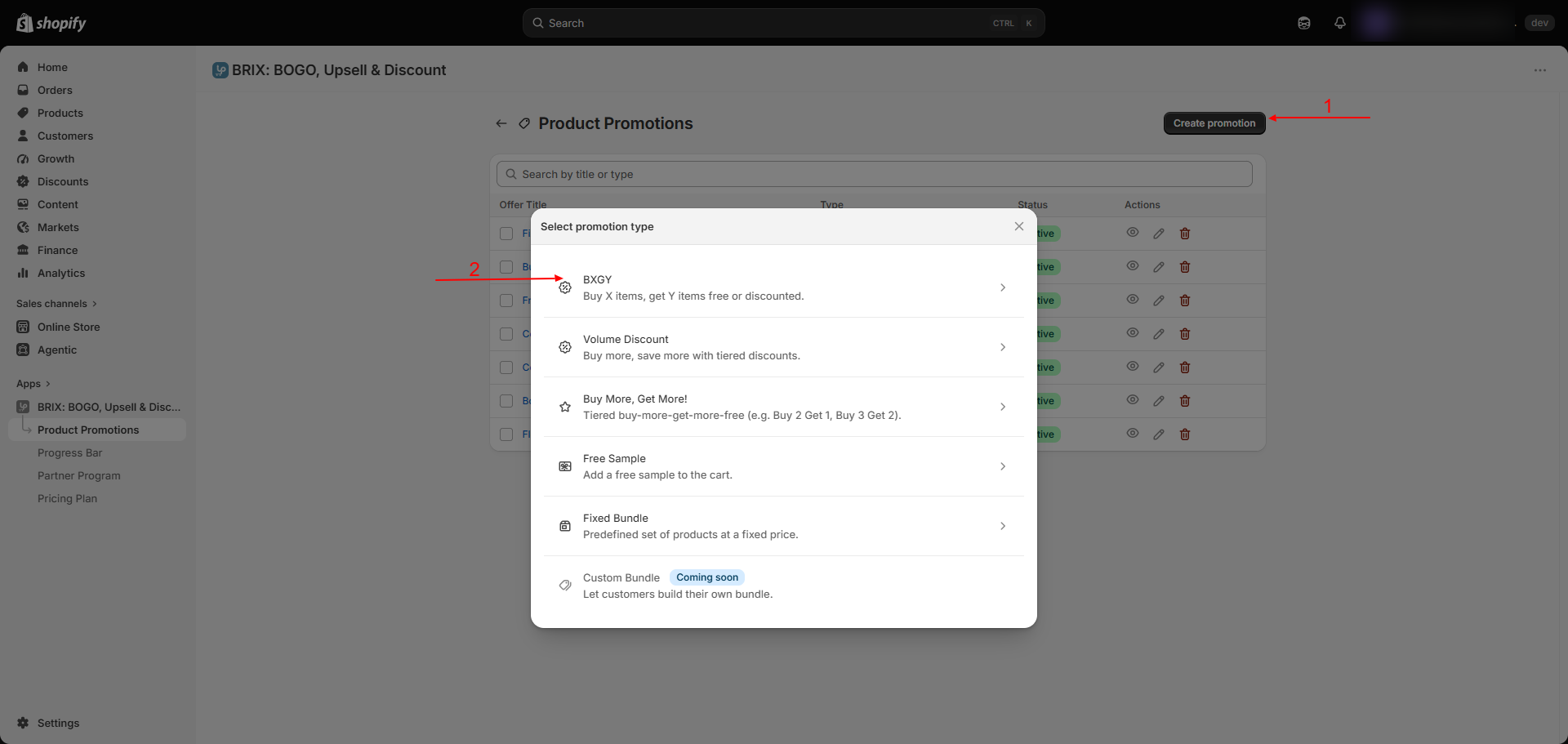
Apps → BRIX: BOGO, Upsell & Discount → Product Promotions → Create promotion → BXGY
How to Use
- From Create promotion, choose BXGY.
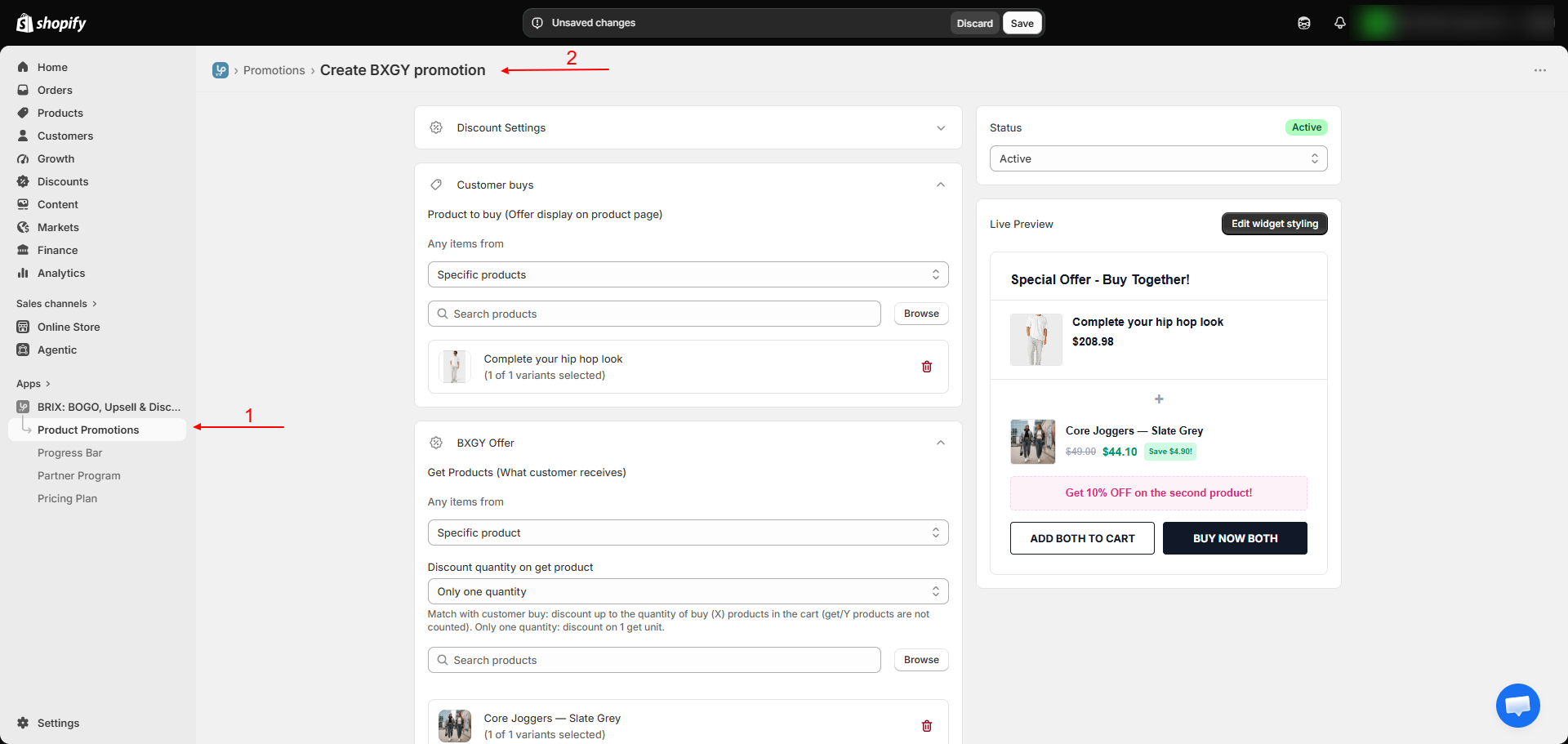
- Configure the "buy" side using the shared targeting settings (specific products, up to 3 collections, or all products) - see Product Promotions Overview.
- Configure the "get" side: choose a specific product, or let customers pick from a collection (up to 3). If you use a collection, the live preview uses the first product in it as an example.
- Choose how the free/discounted quantity is calculated: Only one quantity, or Match with customer buy (the get-quantity scales with how many buy-items the customer adds).
- If you've set up multiple possible "get" products, choose how customers can apply the offer: Any one, Pick how many they want, or All.
- Set the Discount Type for the get-item: Percentage off, Fixed amount off, or Free (100% off a specific product).
- Optionally turn on Free Shipping for orders that use this offer, and Show label on collection page to display a small offer badge on this product's card in your collection pages (requires the Collection Offer Badges app embed - see Storefront Setup).
- Save, then add the BXGY Product Offer block to your product or collection template - see Storefront Setup.
Available Settings
| Setting | Description |
|---|---|
| Get Products | Specific product, or a selection from up to 3 collections |
| Discount quantity on get product | Only one quantity, or match with customer's buy quantity |
| Offer application rules (multiple get-items only) | Any one / Pick how many they want / All |
| Discount Type | Percentage off, Fixed amount off, or Free |
| Discount Value | The percentage or fixed amount, when applicable |
| Free Shipping | Waives shipping on orders using this offer |
| Show label on collection page | Displays an offer badge on this product's card in collection/search listings |
Note A Shopify Plus store also sees an Advanced Settings section here for enabling this offer inside your checkout - see Checkout Extensions. This section isn't shown on non-Plus stores.
Best Practices
- Use "Match with customer buy" when you want the offer to scale naturally with larger orders (buy 3, get 3, etc.) rather than capping the reward at one unit.
- If offering a free, higher-priced item as the "get" product, consider a maximum discount value instead of 100% off to protect margin on unexpected combinations.
- Turn on the collection page label so shoppers discover the offer while browsing, not only once they reach the product page.
Notes
- BXGY currently supports one discount configuration per promotion; to run different BXGY rules for different product groups, create separate promotions.
- The collection page label requires the Collection Offer Badges app embed to be turned on in your theme - it won't appear otherwise even if this setting is checked.
Troubleshooting
The BXGY widget isn't showing on my product page. Confirm the BXGY Product Offer block has been added to that template in your theme editor, and that the promotion is set to Active.
The offer badge isn't showing on the collection page. Turn on the Collection Offer Badges app embed in your theme editor, and confirm "Show label on collection page" is checked on this promotion.
Customers can add the "get" item without buying the "buy" item. This shouldn't happen through the app's own widget - if you see it, check whether a custom theme modification is bypassing the offer widget, and contact support.