

Appearance
Storefront Setup
Every storefront widget this app can add to your theme, and how to configure it.
Overview
Unlike some apps that use a single storewide switch, BRIX: BOGO, Upsell & Discount adds most of its storefront widgets as individual blocks you place on specific templates (product or collection pages), plus two storewide app embeds you turn on once. This page is the full reference for every block and embed, and what each one's settings control.
Benefits
- Full control over exactly which pages show which offer widget
- Every block has its own text, button, and styling settings, so you can match your brand without writing code
- Nothing appears on your storefront until you deliberately add it
Where to Find It
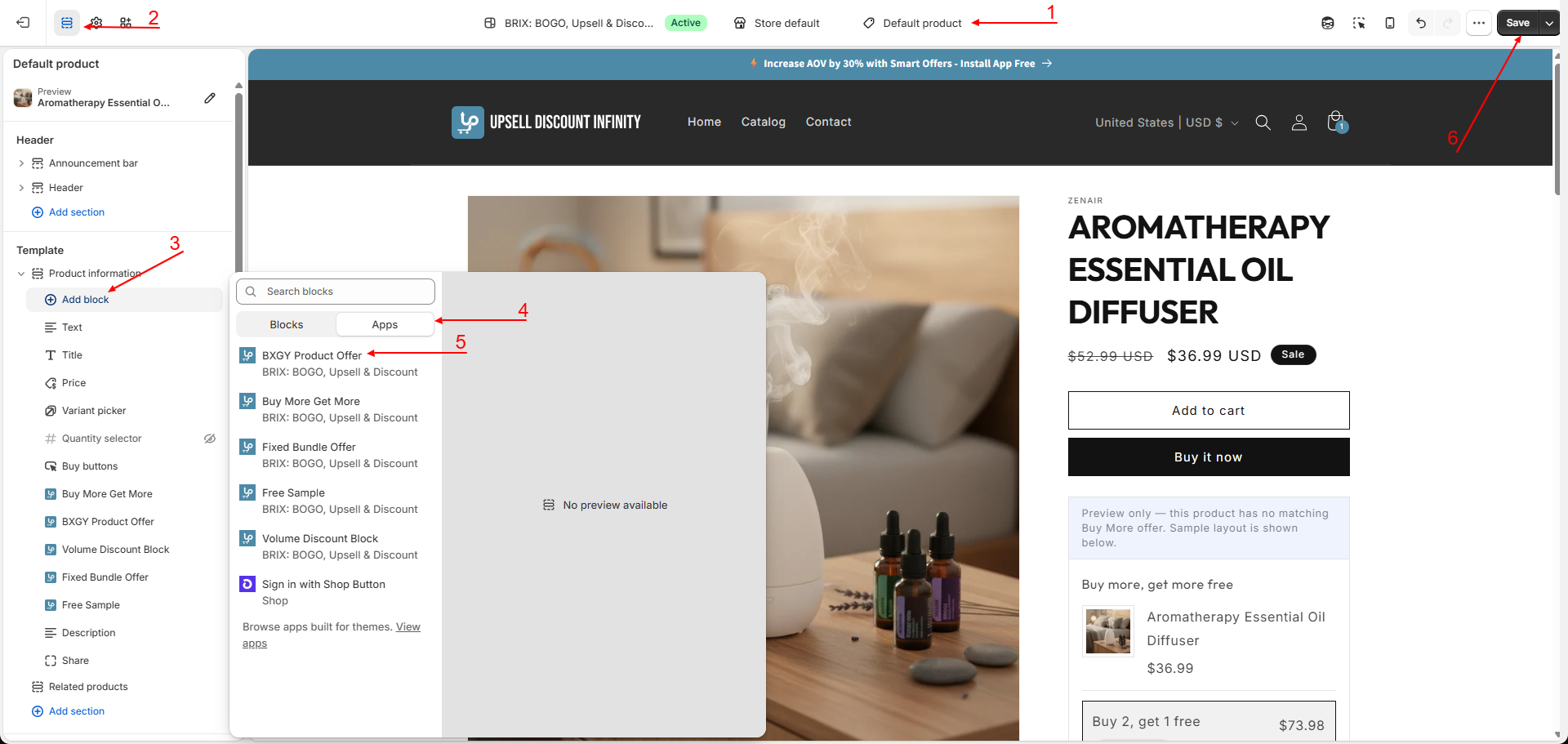
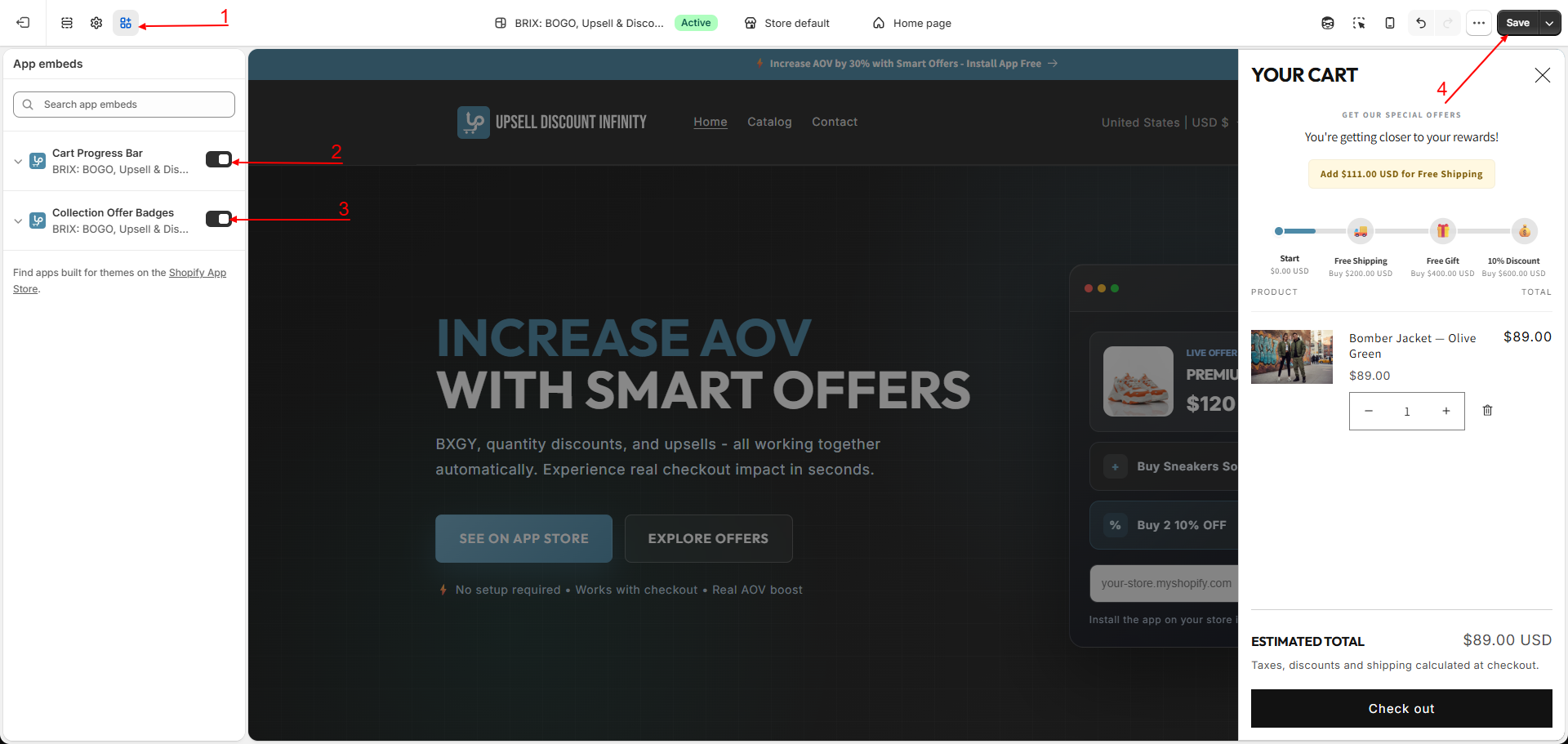
Online Store → Themes → Customize (on your live/published theme) → Add block (on a product or collection template), or App embeds (bottom-left icon)
How to Use
- Open your theme editor and navigate to the product or collection page where you want an offer widget to appear.
- Click Add block, find the block for your promotion type, and add it.
- Adjust that block's settings (button text, colors, custom CSS) as needed - the sections below list every option.
- For the two storewide embeds (Cart Progress Bar, Collection Offer Badges), open App embeds instead and turn them on.
- Click Save.
Available Blocks (added per template)
BXGY Product Offer
Available on product and collection templates. Powers the BXGY Offers widget.
| Setting | Description | Default |
|---|---|---|
| Discount message | Headline shown on the widget; can include the discount value | "Get [discount]% OFF on the second product!" |
| Collection "show all" text | Label for expanding a collection-based get-product picker | "Show All" |
| Add-to-cart button text | Button that adds both items | "Add Both to Cart" |
| Buy-now button text | Button that buys both items immediately | "Buy Now Both" |
| Collection picker label | Heading shown above the get-product picker | "CHOOSE THE SECOND PRODUCT" |
| Show images / show savings amount / show original price / show success message | Visual toggles for the widget | All on |
| Redirect to cart | Sends the customer to their cart after adding | On |
| Cart action behavior | Smart detection (cart drawer, falling back to cart page), cart drawer only, or cart page only | Smart detection |
| Custom CSS | Advanced styling override | Empty |
Buy More Get More
Available on product and collection templates. Powers the Buy More, Get More widget.
| Setting | Description | Default |
|---|---|---|
| Add-to-cart button text | "ADD TO CART" | |
| Buy-now button text | "BUY NOW" | |
| Show images / show success message | Visual toggles | On |
| Redirect to cart | Sends the customer to their cart after adding | On |
| Cart action behavior | Smart, drawer only, or checkout redirect | Smart |
| Custom CSS | Advanced styling override | Empty |
Fixed Bundle Offer
Available on product and collection templates. Powers the Fixed Bundle widget.
| Setting | Description | Default |
|---|---|---|
| Add-to-cart button text | "Add Bundle to Cart" | |
| Buy-now button text | "Buy Bundle Now" | |
| Show images / show savings amount / show original price / show success message | Visual toggles | All on |
| Redirect to cart | Sends the customer to their cart after adding | On |
| Cart action behavior | Smart, drawer only, or checkout redirect | Smart |
| Custom CSS | Advanced styling override | Empty |
Free Sample
Available on product and collection templates. Powers the Free Sample widget.
| Setting | Description | Default |
|---|---|---|
| Discount message | Headline shown on the widget | "Get your sample 100% FREE!" |
| Collection "show all" text | Label for expanding a collection-based sample picker | "Show All" |
| Add-to-cart / buy-now button text | Button labels | "Add Both to Cart" / "Buy Now Both" |
| Collection picker label | Heading above the sample picker | "CHOOSE YOUR FREE SAMPLE" |
| Show images / show savings amount / show original price / show success message | Visual toggles | All on |
| Redirect to cart | Sends the customer to their cart after adding | On |
| Cart action behavior | Smart, drawer only, or checkout redirect | Smart |
| Custom CSS | Advanced styling override | Empty |
Volume Discount Block
Available on product templates only. Powers the Volume Discounts widget.
| Setting | Description | Default |
|---|---|---|
| Title alignment | Left, center, or right | Left |
| Deal title | Heading text | "SELECT A QUANTITY DEAL" |
| Deal badge | Small highlight text | "Best bulk savings" |
| Tier message | Per-tier description, can include the quantity | "Buy [quantity] or more" |
| Add-to-cart / buy-now button text | Button labels | "Add to Cart" / "Buy Now" |
| Custom CSS | Advanced styling override | Empty |
Available App Embeds (turned on storewide)
Cart Progress Bar
Powers the Cart Progress Bar widget.
| Setting | Description |
|---|---|
| Advanced: cart section identifier | Leave blank for automatic detection. If discounts or progress don't update instantly after a cart change on your theme, your developer can enter your theme's specific cart section identifier here to fix the delay. |
Collection Offer Badges
Shows a small badge on product cards in collection, search, and home pages when a product has an active promotion.
| Setting | Description | Default |
|---|---|---|
| Label style | Rectangle tag, rounded badge, pill outline, corner ribbon, or diagonal stripe | Rectangle tag |
| Accent color / badge background / badge text color | Badge colors | Red background, white text |
| Custom CSS | Advanced styling override | Empty |
Best Practices
- Only add a block to the templates where you're actually running that promotion type, to keep your theme editor uncluttered.
- Keep custom button text short - long labels can wrap awkwardly on mobile.
- If a specific cart drawer isn't updating instantly after an add-to-cart, ask your developer to fill in the Cart Progress Bar's advanced cart-section setting rather than leaving it on automatic detection.
Notes
- These blocks and embeds only render an offer when a matching, Active promotion actually exists - adding a block with no matching promotion configured shows nothing (or an editor-only placeholder while you're customizing).
- While customizing in the theme editor, if a block's product has no matching promotion, the editor shows a "Preview only" notice and a sample layout instead of leaving the block blank - this sample is for editing purposes only and won't appear to real customers.
- Custom CSS fields are intended for merchants comfortable with code, or their developer - the app's support team can help with app settings but can't debug custom CSS you've written.
Troubleshooting
I added a block but nothing shows on the storefront. Confirm you have at least one Active promotion of the matching type targeting the current product, and that you clicked Save in the theme editor.
The Cart Progress Bar doesn't refresh instantly after adding an item. On some custom themes, this can happen if the app can't automatically detect your cart drawer. Ask your developer to set the advanced cart section identifier described above.
The collection badge isn't showing. Confirm the Collection Offer Badges app embed is turned on, and that "Show label on collection page" is checked on the relevant promotion.