

Appearance
Product Promotions Overview
How campaign creation works - the shared settings and behavior used across every promotion type.
Overview
Product Promotions is where you build BXGY, Buy More Get More, Volume Discount, Free Sample, and Fixed Bundle campaigns. Every promotion type shares the same creation screen and the same core settings, then adds its own type-specific configuration on top. Once you're familiar with the shared parts described here, each individual promotion type page only needs to cover what's different.
Benefits
- One consistent screen for every promotion type, so switching between offer types isn't a relearning exercise
- Flexible targeting - by specific products, specific collections, or your whole catalog
- A live preview shows you the storefront widget as you configure it, before you save
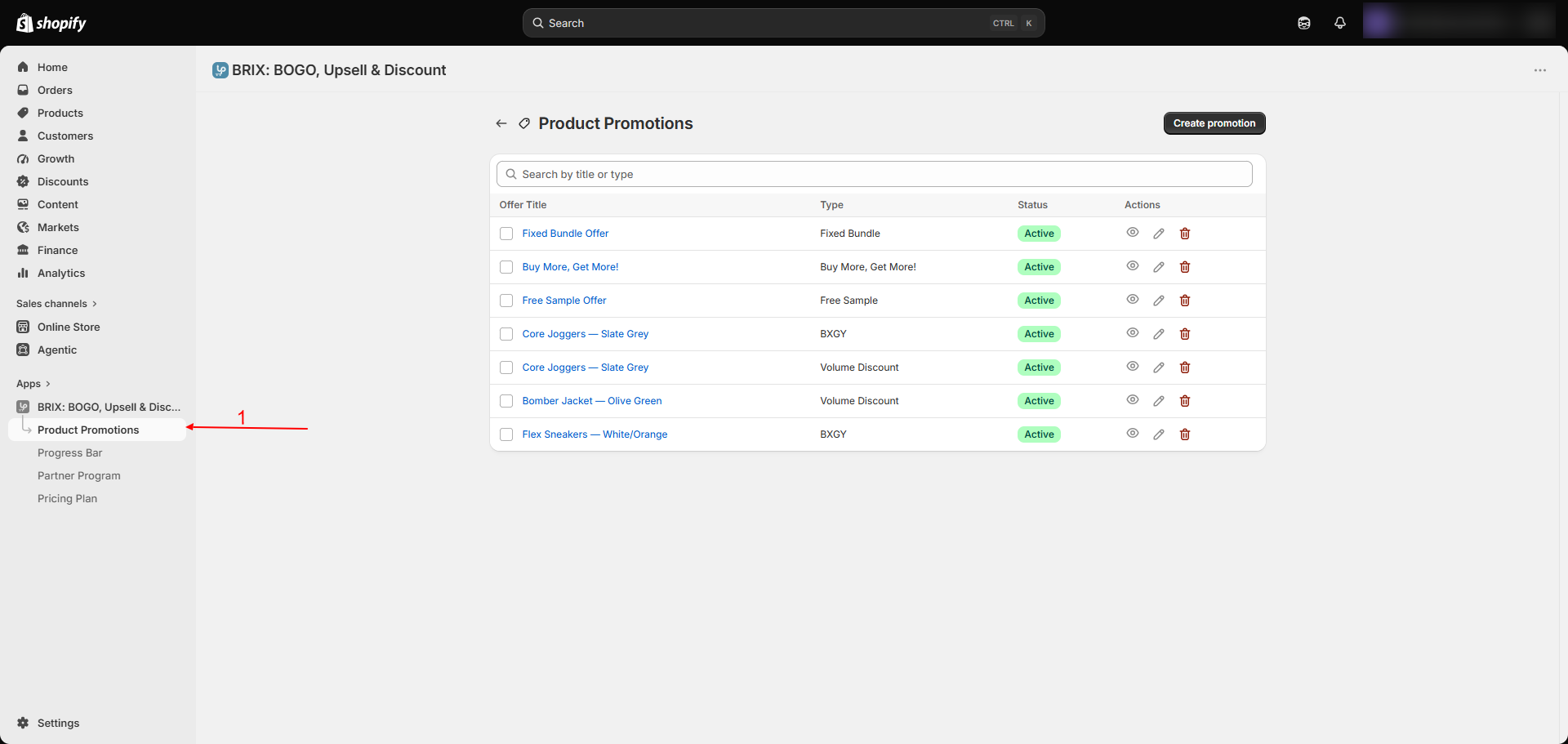
Where to Find It
Apps → BRIX: BOGO, Upsell & Discount → Product Promotions
How to Use
- Open the app and go to Product Promotions.
- Click Create promotion and choose a promotion type: BXGY, Volume Discount, Buy More Get More, Free Sample, or Fixed Bundle.
- Give it a Promotion Title (shown at the top of the storefront widget) and a Discount Label (what customers see in their cart and at checkout - you can include the discount amount using a placeholder token so it updates automatically).
- Choose who the offer applies to: specific products, up to three collections, or your entire catalog. Add any products or collections you want to exclude.
- Configure the type-specific offer details - see the individual promotion type pages linked below.
- Optionally check Exclude B2B customers if you sell to business accounts and don't want this promotion available to them.
- Set the promotion to Active, review the live preview, and click Save.
- Use Add widget to theme from the promotion's page to jump into your theme editor and add the matching storefront block.
Available Settings
Shared across every promotion type
| Setting | Description |
|---|---|
| Promotion Title | Shown at the top of the storefront offer widget. Leave blank to use a sensible default for that promotion type. |
| Discount Label | The text customers see in their cart and at checkout for this discount; can include the discount amount as a dynamic value. |
| Applies to | Specific products, up to 3 collections, or all products. |
| Exclusions | Specific products or collections to leave out of an otherwise broad targeting rule. |
| Exclude B2B customers | Prevents B2B/company accounts from receiving this promotion. |
| Status | Active or Inactive - there is no scheduled start/end date; a promotion runs as soon as it's Active and stops as soon as you switch it to Inactive. |
Note Product Promotions currently has no built-in start/end date scheduling. If you need a campaign to run only during a specific window, you'll need to manually switch it to Active and Inactive at the right times.
Best Practices
- Keep your Discount Label short and specific - it's what customers see right before they check out.
- When targeting by collection, double-check the collection's product list, since new products added to that collection are automatically included going forward.
- Use exclusions instead of narrowing your "applies to" list when you only need to leave out a handful of items from an otherwise broad rule.
Notes
- When you turn on "Show label on collection page," the editor shows a live status check confirming whether the Collection Offer Badges app embed is already active on your theme - so you'll know immediately if you still need to turn it on, without leaving the page.
- Collection-scoped promotions sync to every product in the collection in the background - if you've just added or changed a large collection, it may take a short time for the offer to appear on every product.
- There is no limit on the number of active promotions you can run at once.
- Each promotion supports exactly one offer configuration - you can't combine two different offer types inside a single promotion, but you can run several separate promotions at the same time.
Troubleshooting
My promotion is Active but doesn't show on the storefront. Confirm you've added the matching storefront block for that promotion type to your theme - see Storefront Setup.
I just added products to a collection and the offer hasn't appeared on them yet. Collection-based promotions sync in the background and may take a short time to reach every product - check back shortly.
I can't select more than 3 collections. This is expected - collection targeting is capped at 3 collections per promotion. Use "All products" with exclusions instead if you need broader coverage.