

Appearance
Free Sample
Automatically offer a free sample product once a customer's cart meets your conditions.
Overview
Free Sample lets you offer a free sample product to customers who buy a qualifying quantity of another product. You can have the sample add itself to the cart automatically, or let the customer actively choose to claim it. This page covers what's unique to this promotion type; see Product Promotions Overview for shared settings.
This is a distinct feature from the Cart Progress Bar's free gift reward, which is unlocked by cart value or item count rather than by buying a specific product. See Cart Progress Bar if that's what you're looking for.
Benefits
- Introduce customers to a new or complementary product at no risk to them
- Choose between fully automatic sample delivery or a customer-claimed sample, depending on how much control you want
- Cap how many samples can be claimed per order to protect your sample stock
Where to Find It
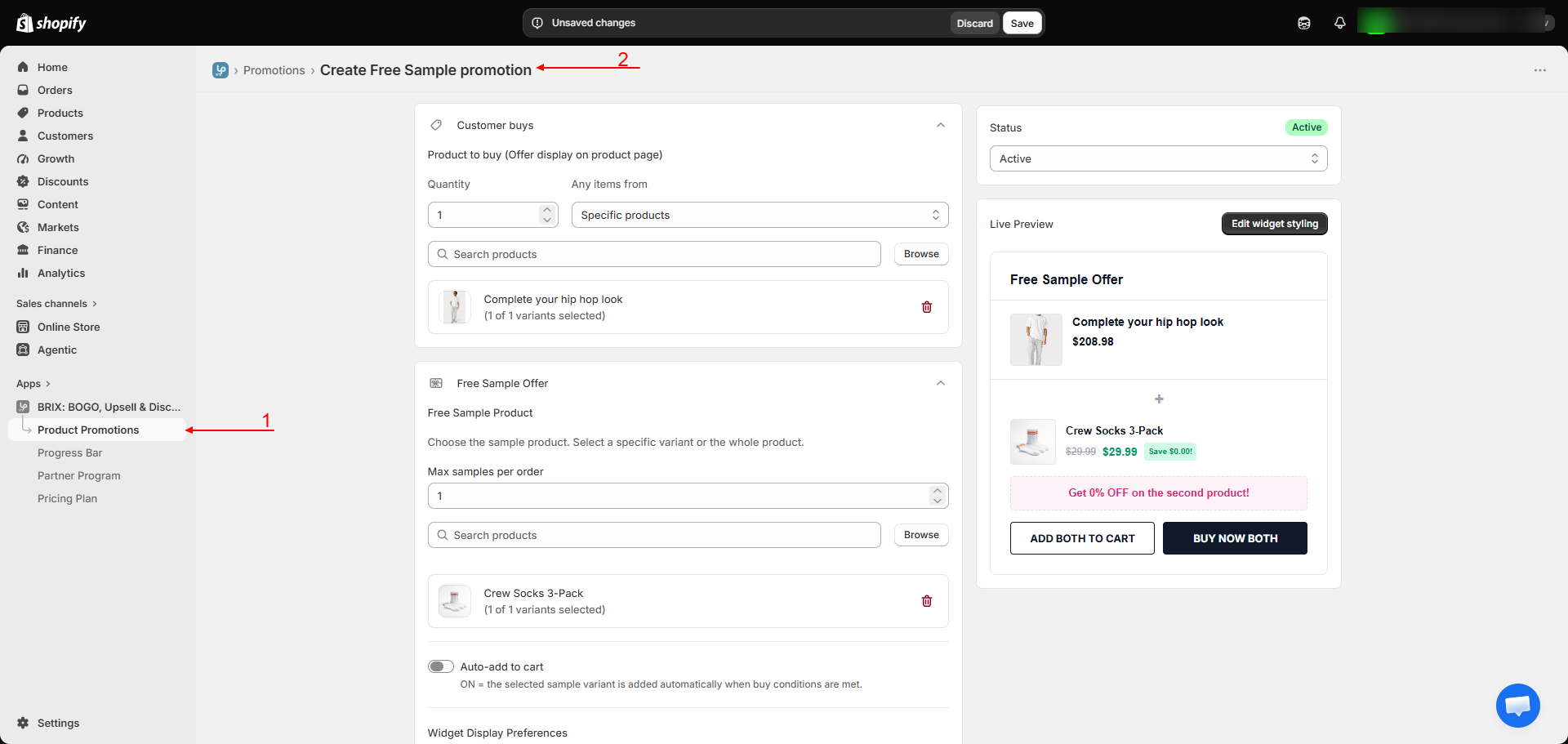
Apps → BRIX: BOGO, Upsell & Discount → Product Promotions → Create promotion → Free Sample
How to Use
- From Create promotion, choose Free Sample.
- Set up the shared targeting - which products or collections trigger the offer - see Product Promotions Overview.
- Choose the sample product (a specific product or variant) that customers receive.
- Set the Max samples per order limit.
- Choose whether the sample is added automatically once conditions are met, or requires the customer to claim it manually.
- If claiming is manual, choose which action buttons appear on the widget: Add to Cart only, Buy Now only, or both.
- Optionally turn on Show label on collection page.
- Save, then add the Free Sample block to your product or collection template.
Available Settings
| Setting | Description |
|---|---|
| Sample product | The specific product/variant given as a free sample |
| Max samples per order | Caps how many free samples one order can include |
| Auto-add to cart | When on, the sample is added automatically once buy conditions are met; when off, the customer must claim it |
| Widget display preferences (manual claim only) | Choose Add to Cart only, Buy Now only, or both |
| Show label on collection page | Displays an offer badge on this product's card in collection/search listings (requires the Collection Offer Badges app embed) |
Note Free Sample does not have a Free Shipping toggle - it's a product-level offer rather than a shipping- or order-level one.
Best Practices
- Use auto-add for a frictionless "surprise and delight" experience; use manual claim if you want customers to actively opt in (useful if the sample has size/scent/color variants to choose from).
- Set a max-per-order limit that matches your actual sample inventory to avoid overcommitting stock.
Notes
- The buy-quantity condition that triggers the sample offer follows the same targeting rules described in Product Promotions Overview.
- There's no scheduled start/end date - use the Active/Inactive toggle to control when the campaign runs.
Troubleshooting
The free sample isn't being added automatically. Confirm Auto-add to cart is turned on, and that the customer's cart genuinely meets the buy conditions you configured.
Customers are claiming more samples than my limit. Confirm Max samples per order is set correctly and that you haven't accidentally created a second, overlapping Free Sample promotion.