

Appearance
Volume Discounts
Tiered pricing that rewards customers for buying more of the same product.
Overview
Volume Discounts let you offer better pricing as a customer increases the quantity of one product in their cart - for example, 10% off at 3 units and 20% off at 5 units. This page covers what's unique to this promotion type; see Product Promotions Overview for shared settings.
Benefits
- Encourages customers to buy in bulk without you creating separate discount codes
- Simple to set up - just a quantity and a discount value per tier
- Works alongside your other promotion types on different products
Where to Find It
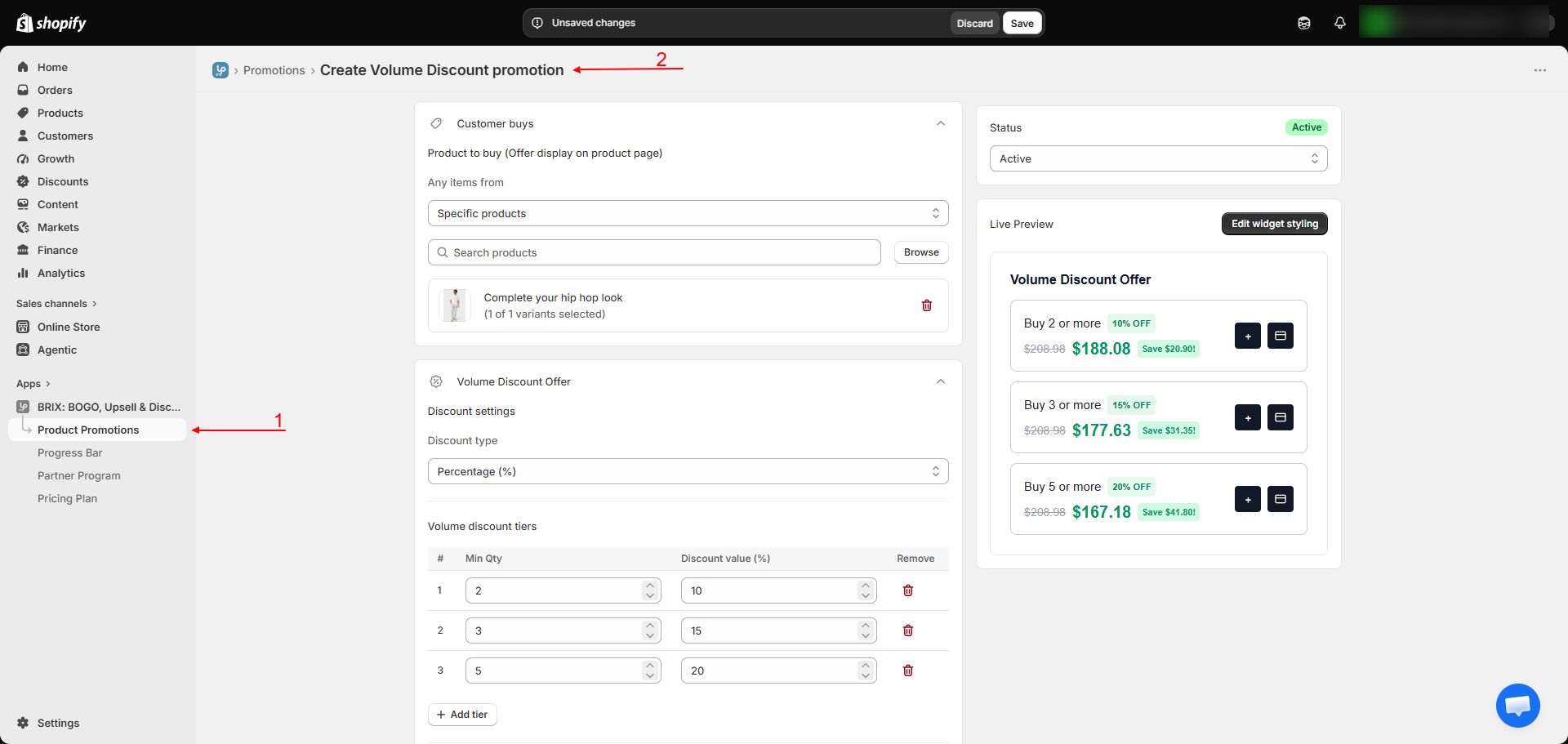
Apps → BRIX: BOGO, Upsell & Discount → Product Promotions → Create promotion → Volume Discount
How to Use
- From Create promotion, choose Volume Discount.
- Set up the shared targeting (which products this applies to) - see Product Promotions Overview.
- Choose a Discount Type: Percentage off or Fixed amount off.
- Build your tier table: enter a Minimum quantity and a Discount value for each tier. Click Add tier to add more - the app suggests a sensible next tier and discount automatically.
- Optionally turn on Free Shipping and Show label on collection page.
- Save, then add the Volume Discount Block to your product template.
Available Settings
| Setting | Description |
|---|---|
| Discount Type | Percentage off or Fixed amount off |
| Tier table | Minimum quantity and discount value per tier |
| Add tier | Adds another quantity tier |
| Free Shipping | Waives shipping on orders using this offer |
| Show label on collection page | Displays an offer badge on this product's card in collection/search listings (requires the Collection Offer Badges app embed) |
Best Practices
- Set your lowest tier at a quantity most customers would realistically consider (e.g. 2 or 3), so the offer feels reachable rather than aspirational.
- Increase the discount meaningfully between tiers so customers have a clear incentive to reach the next one.
- This promotion type is available on product pages only - pair it with the Cart Progress Bar if you also want a storewide, cross-product incentive.
Notes
- Volume Discount tiers apply based on the quantity of that single product in the customer's cart line, not combined with quantities of other products.
- There's no scheduled start/end date - use the Active/Inactive toggle to control when the campaign runs.
Troubleshooting
The volume discount widget isn't showing on my product page. Confirm the Volume Discount Block has been added to that product template, and the promotion is Active.
A customer's discount didn't match the tier they expected. Confirm the exact quantity thresholds in your tier table - a customer must reach the minimum quantity of a tier to unlock its discount.