

Appearance
Cart Progress Bar
Show shoppers how close they are to unlocking a reward, and encourage them to add more to their cart.
Overview
The Cart Progress Bar is a storewide widget that tracks a customer's cart against one or more milestones you set - by cart value or by item quantity - and shows them what they'll unlock next. This page covers creating a bar and its general settings; see Progress Bar Rewards & Milestones for how to configure what each milestone actually rewards.
Benefits
- Gives shoppers a visible, real-time incentive to keep adding to their cart
- Works storewide rather than per-product, so it complements your other promotion types
- Fully customizable trigger, design, and messaging
Where to Find It
Apps → BRIX: BOGO, Upsell & Discount → Progress Bar
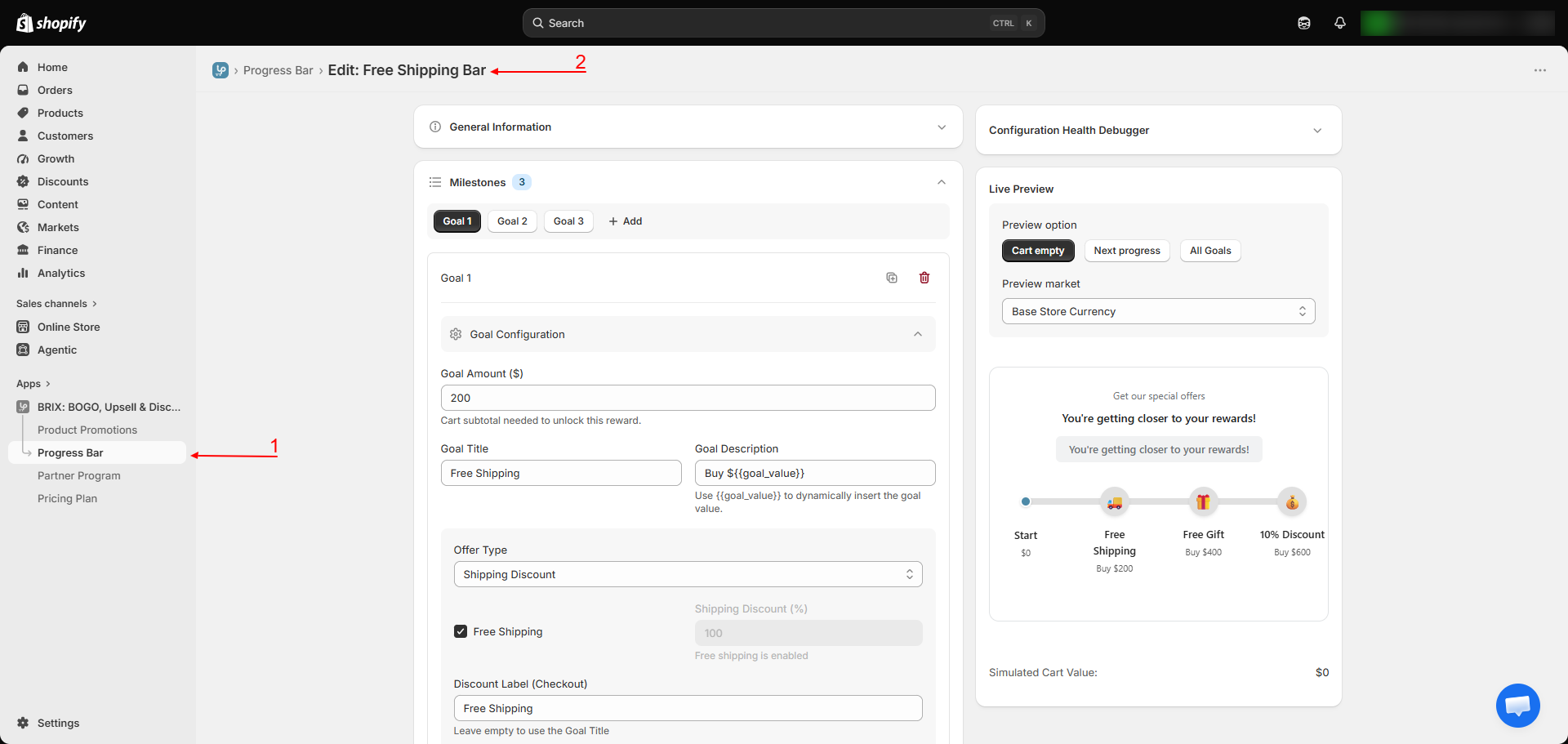
Note This screen also continues into milestone, display, and popup settings further down the page - see Progress Bar Rewards & Milestones for those sections in detail.
How to Use
- Open the app and go to Progress Bar.
- Click Create to start a new bar (or open an existing one to edit it).
- Give it a Progress Bar Name (internal only - not shown to customers) and a Title (the heading shown on the widget; leave blank to hide it).
- Choose the Trigger Type: Cart Amount (based on subtotal) or Cart Quantity (based on item count).
- Optionally check Only consider physical products to exclude digital products and gift cards from the calculation.
- If using Cart Amount, choose whether the goal is measured before or after existing discounts are applied.
- Add your milestones and configure their rewards - see Progress Bar Rewards & Milestones.
- Choose the bar's Display Position (top or bottom sticky bar) and review the live preview.
- Save, then turn on the Cart Progress Bar app embed in your theme editor if you haven't already - see Storefront Setup.
Available Settings
General Information
| Setting | Description |
|---|---|
| Progress Bar Name | Internal label only, not shown to customers |
| Title | The heading shown on the storefront widget; leave empty to show no title |
| Trigger Type | Cart Amount (subtotal) or Cart Quantity (item count) |
| Only consider physical products | Excludes digital products and gift cards from the goal calculation |
| Consider subtotal (Cart Amount only) | Before discount or after discount |
Display
| Setting | Description |
|---|---|
| Display Position | Top sticky bar or bottom sticky bar |
Best Practices
- If most of your catalog is physical goods with the occasional digital add-on (like a gift card), turn on Only consider physical products so those items don't distort the goal.
- Choose "before discount" if you want the bar's goals to reflect full retail value; choose "after discount" if you want it to reflect what the customer will actually pay.
- Keep your Title short - it needs to fit comfortably in a sticky bar on mobile.
Notes
- Only one Cart Progress Bar can be meaningfully active on the storefront at a time in a typical setup - if you create more than one, review which one is Active to avoid confusion.
- The bar's cart-value calculations are independently verified by the app in the background to prevent tampering, so what a customer sees always reflects a value the app can confirm is accurate.
Troubleshooting
The Progress Bar isn't showing on my storefront. Confirm the Cart Progress Bar app embed is turned on and saved in your theme editor, and that at least one bar is set to Active.
The bar's progress doesn't match what I expect for a customer's cart. Check whether Only consider physical products and the before/after-discount setting match what you intended - both affect how the goal amount is calculated.